Express Connect Practice

About this task

ZStack Cloud allows you to create an Alibaba Cloud express connect to enable the intercommunication between the VPC networks in local data center and on Alibaba Cloud.

To create an Alibaba Cloud express, following these steps:
  1. Prepare a physical circuit, a virtual border router, and router interfaces provided by an operator.
  2. Plan network CIDRs, including a public network CIDR, a management network CIDR, a physical circuit network CIDR, and a VPC network CIDR. The public network CIDR and the management network CIDR can be the same one.
  3. Use the local VPC network to create a VM instance on ZStack CloudPrivate Cloud.
  4. Attach the physical circuit network to a VPC vRouter.
  5. Prepare a VPC environment on Alibaba Cloud. Use the vSwitch associated with the Alibaba Cloud VPC to create an ECS instance.
  6. In ZStack Cloud Hybrid Cloud Management, add an AccessKey, regions, and zones, and synchronize corresponding resources.
  7. Use Quick Start Wizard to create an Alibaba Cloud express connect.
  8. Configure route rules for both Alibaba Cloud VPC virtual router and local VPC vRouter on the CPE device.
  9. Check whether the local VM instance and the Alibaba Cloud ECS instance can ping each other. If so, the express connect is created successfully.
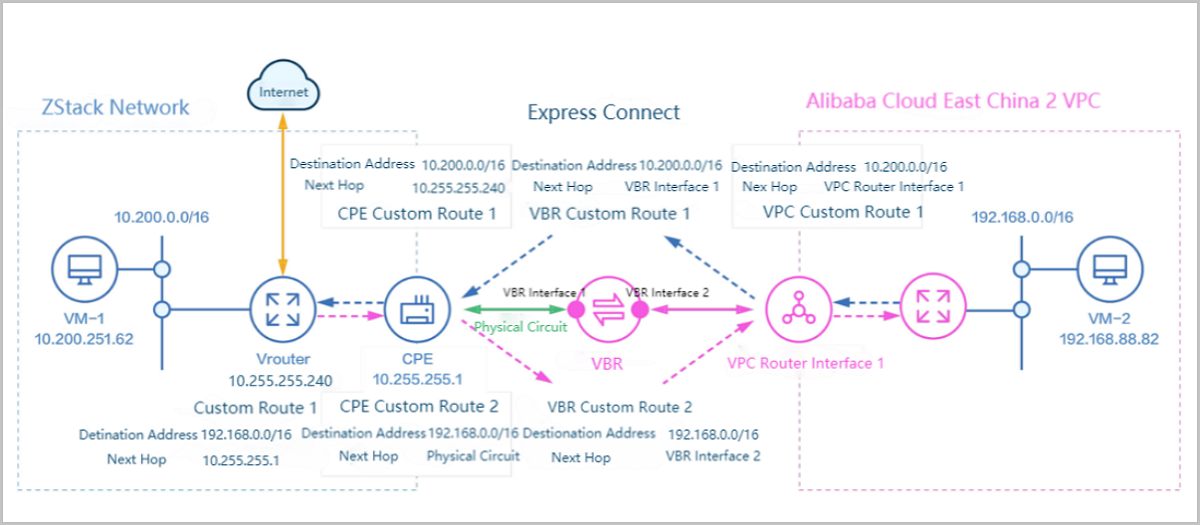
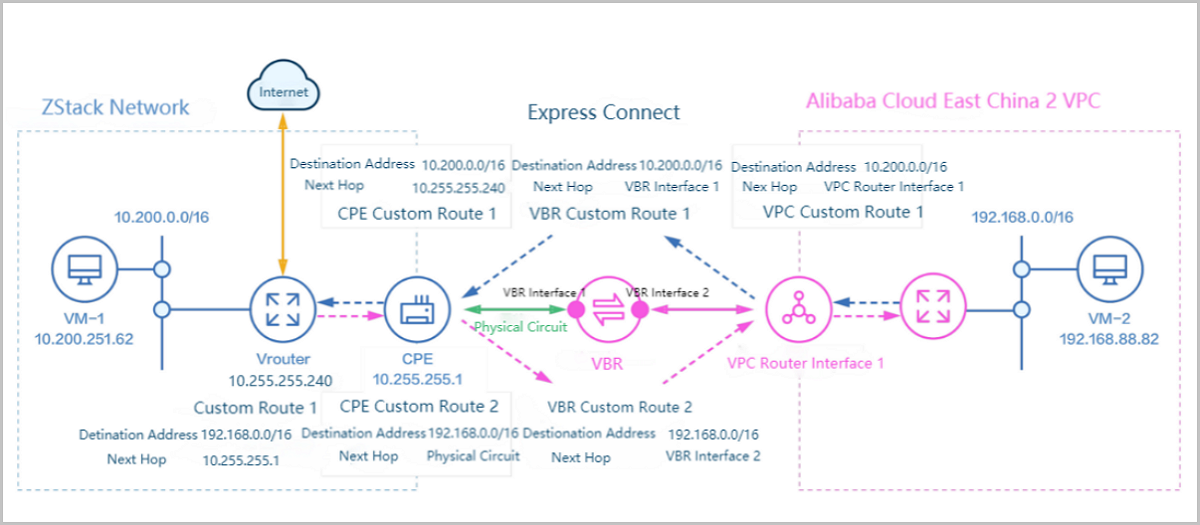
Express connect logic: Use a physical circuit to connect the local data center and the access point of Alibaba Cloud, thus realizing the intercommunication between the local VPC network and Alibaba Cloud VPC.
Note: The CIDRs from the local VPC vRouter to Alibaba Cloud VPC, which use the express connect to realize the intercommunication, cannot overlap with each other.
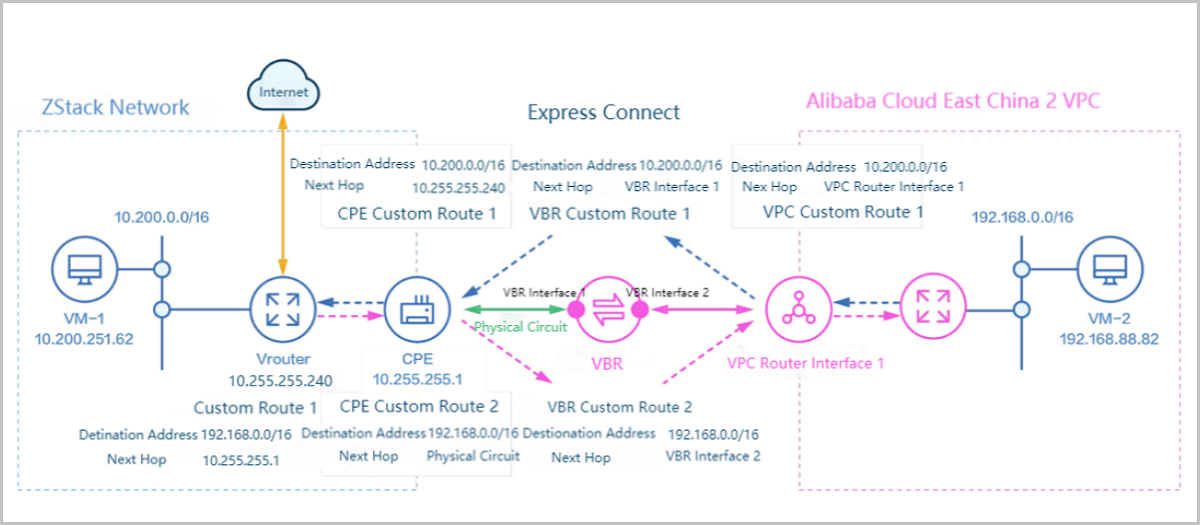
Figure 1. Express Connect Network Architecture


Assume that your environment is as follow:
  1. Public Network
    Table 1. Public Network Configurations
    Public Network Configuration
    NIC em01
    VLAN ID NoVLAN
    IP Range 172.20.58.180~172.20.58.189
    Netmask 255.255.0.0
    Gateway 172.20.0.1
    Note Private Cloud VM instance can use this network to access the Internet.
  2. Physical Circuit Network
    Table 2. Physical Circuit Network Configurations
    Physical Circuit Network Configuration
    NIC em02
    VLAN ID NoVLAN
    IP Range 10.255.255.230~10.255.255.240
    Netmask 255.255.255.0
    Gateway 10.255.255.1
    Note A new network. Private Cloud VM instances use this network to access Alibaba Cloud ECS instances.
  3. Private Network
    Table 3. Private Network Configurations
    VPC Configuration
    NIC em01
    VLAN ID 2984
    IP CIDR 10.200.0.0/16
  4. The local IP address of the CPE device is 10.255.255.1
  5. The local IP address of the virtual border router is 10.240.1.1. The Alibaba Cloud IP address of the virtual border router is 10.240.1.2.
  6. The CIDR of Alibaba Cloud VPC is 192.168.0.0/16.
Follow these steps to configure routes
  1. Make local VM instance access Alibaba Cloud ECS instance.
    1. Configure the VPC route: On the VPC vRouter, set the route destination address as the ECS VPC CIDR, 192.168.0.0/16. Set the next hop as the IP address of the client CPE device, 10.255.255.1.
    2. Configure the CPE device custom route: On the CPE device, set the destination address as the ECS VPC CIDR, 192.168.0.0/16. Set the next hop as the address of the physical circuit.
    3. Configure VRB custom route 2: On the VRB, set the destination address as the ECS VPC CIDR, 192.168.0.0/16. Set the next hop as VRB interface2, which is the VRB interface on Alibaba Cloud.
    4. The Alibaba Cloud virtual router forwards the routes it receives to the ECS instance.
    Figure 2. Route Configurations Enabling Local VM Instance to Ping Alibaba Cloud ECS Instance


  2. Make Alibaba Cloud ECS instance access local VM instance.
    1. Configure the VPC custom route1: On the VPC virtual router on Alibaba Cloud, set the destination address as the CIDR of the ZStack Cloud VPC network, 10.200.0.0/16. Set the next hop as the VPC virtual router interface1.
    2. Configure the VBR custom route1: On the VBR, set the destination address as the CIDR of the ZStack Cloud VPC network, 10.200.0.0/16. Set the next hop as the VBR interface1, which is the VBR interface on ZStack Cloud.
    3. Configure the CPE custom route1: On the CPE device, set the destination address as the CIDR of the ZStack Cloud VPC network, 10.200.0.0/16. Set the next hop as the physical circuit IP address of the VPC vRouter, 10.255.255.240.
    4. The VPC vRouter forwards the routes it receives to the VM instance on ZStack CloudPrivate Cloud.
    Figure 3. Route Configurations Enabling Alibaba Cloud ECS Instance Ping Local VM Instance


Note:
  1. When you create an express connect, the following 4 routes are automatically configured by ZStack Cloud:
    • VPC Custom Route2 (Configured with Alibaba Cloud APIs)
    • VBR Custom Route1 (Configured with Alibaba Cloud APIs)
    • VBR Custom Route2 (Configured with Alibaba Cloud APIs)
    • VPC Custom Route1 (Configured with local APIs)
  2. The following two routes on the CPE device need to be created manually:
    • CPE Custom Route1
    • CPE Custom Route2
The procedures are described in details as follows:
Note:
  • This practice uses a same CIDR for both the public network and the management network.
  • This practice enables VM instances on ZStack CloudPrivate Cloud access both the Internet and Alibaba Cloud ECS instances.

Procedure

  1. Create an L2 public network on ZStack CloudPrivate Cloud.
  2. Create an L3 public network on ZStack CloudPrivate Cloud.
  3. Create an L2 physical circuit network on ZStack CloudPrivate Cloud.
  4. Create an L3 physical circuit network on ZStack CloudPrivate Cloud.
  5. Create an L2 VPC network on ZStack CloudPrivate Cloud.
  6. Create an L3 VPC network on ZStack CloudPrivate Cloud.
  7. Use the VPC network to create a Private Cloud VM instance.
  8. Attach the physical circuit network to the VPC vRouter.
  9. Prepare the VPC environment on Alibaba Cloud, and use the vSwitch associated with the Alibaba Cloud VPC to create an ECS instance.
  10. In ZStack Cloud Hybrid Cloud Management, add an AccessKey, regions, and zones. Then, synchronize corresponding resources.
  11. Use Quick Start Wizard to create an Alibaba Cloud express connect.
    1. On the Quick Start Wizard, click Create Alibaba Cloud Express Connect.
    2. Configure ZStack Cloud network.
      Set the following parameters:
      • VPC vRouter: Select a local VPC vRouter.
      • Public Network: Select a dedicated network to connect local and the VBR interface.
      • VPC Network: Select a local VPC network.
    3. Configure Alibaba Cloud Network
      Set the following parameters:
      • VPC: Select a VPC.
      • VBR: Select a VBR. A VBR is created and configured with routes by an ISP.
      • CPE IP (ISP): The IP address of the client device provides by an ISP for the physical circuit to access the local environment.
  12. Manually configure 2 routes on the CPE device.
    • Configure CPE custom route1: Set the destination address as the CIDR of ZStack Cloud VPC network. Set the next hop as the physical circuit IP of the VPC vRouter.
    • Configure CPE custom route2: Set the destination address as the ECS VPC CIDR. Set the next hop as the physical circuit address.
  13. Check whether the local VM instance and the ECS instance can ping each other.
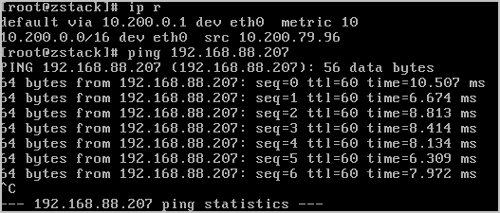
    1. Log in to the local VM instance and ping the ECS instance.
      Figure 4. Local VM Instance ping ECS Instance


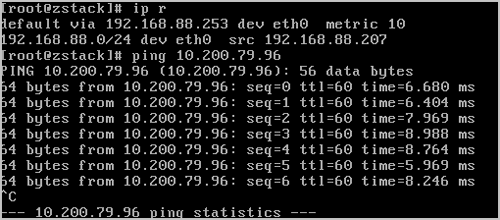
    2. Log in to the ECS instance and ping the local VM instance.
      Figure 5. ECS Instance ping Local VM Instance


What to do next

Now, you create an express connect successfully and can use it to enable the intercommunication between ZStack CloudPrivate Cloud VM instances and Alibaba Cloud ECS instances.

Archives

Download Document Archives

Download

Already filled the basic info?Click here.

Enter at least 2 characters.
Cannot be empty.
Invalid mobile number.
Enter at least 4 characters.
Invalid email address.
Wrong code. Try again. Send Code Resend Code (60s)

An email with a verification code will be sent to you. Make sure the address you provided is valid and correct.

同意 不同意

I have read and concur with the Site TermsPrivacy PolicyRules and Conventions on User Management of ZStack Cloud

Download

Not filled the basic info yet? Click here.

Invalid email address or mobile number.
同意 不同意

I have read and concur with the Site TermsPrivacy PolicyRules and Conventions on User Management of ZStack Cloud

Email Us

contact@zstack.io
ZStack Training and Certification
Enter at least 2 characters.
Invalid mobile number.
Enter at least 4 characters.
Invalid email address.
Wrong code. Try again. Send Code Resend Code (60s)

同意 不同意

I have read and concur with the Site TermsPrivacy PolicyRules and Conventions on User Management of ZStack Cloud

Email Us

contact@zstack.io
Request Trial
Enter at least 2 characters.
Invalid mobile number.
Enter at least 4 characters.
Invalid email address.
Wrong code. Try again. Send Code Resend Code (60s)

同意 不同意

I have read and concur with the Site TermsPrivacy PolicyRules and Conventions on User Management of ZStack Cloud

Email Us

contact@zstack.io

The download link is sent to your email address.

If you don't see it, check your spam folder, subscription folder, or AD folder. After receiving the email, click the URL to download the documentation.

The download link is sent to your email address.

If you don't see it, check your spam folder, subscription folder, or AD folder.
Or click on the URL below. (For Internet Explorer, right-click the URL and save it.)

Thank you for using ZStack products and services.

Submit successfully.

We'll connect soon.

Thank you for using ZStack products and services.