AliyunNAS Primary Storage Deployment Practice

About this task

ZStack Cloud seamlessly integrates Alibaba Cloud NAS, restores the Alibaba Cloud centralized storage to distributed storage, and loads it to ZStack CloudPrivate Cloud as a primary storage type, AliyunNAS, for VM instances,.

A AliyunNAS primary storage works with an ImageStore image storage.
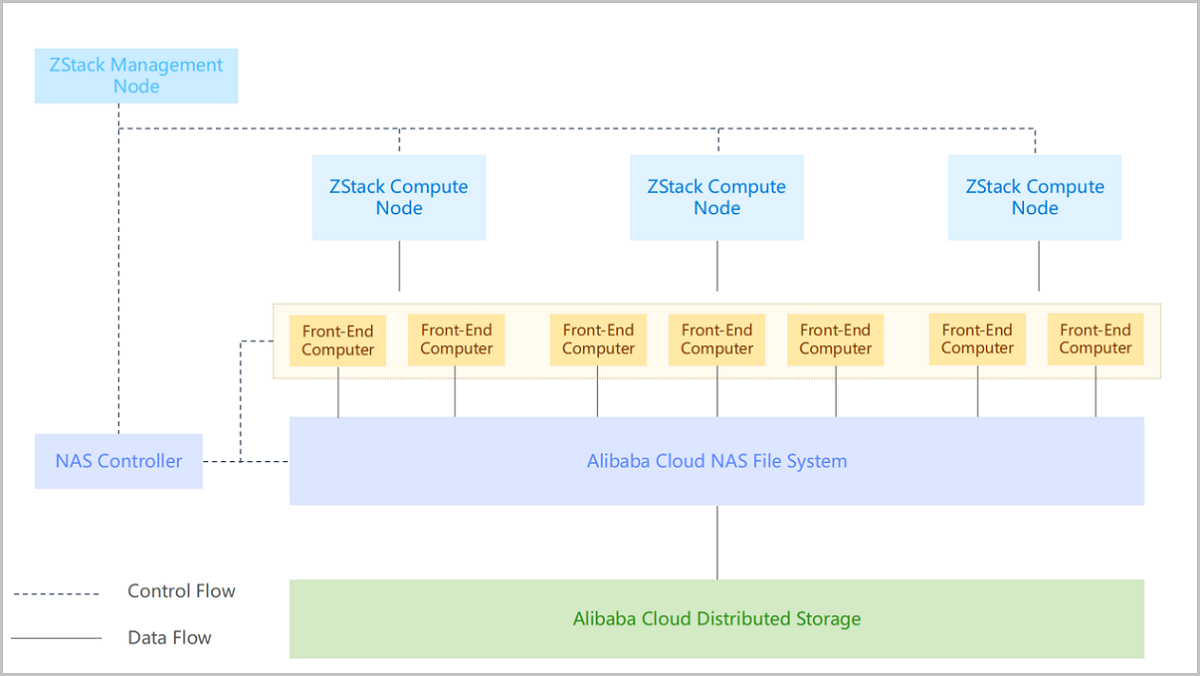
Figure 1. ZStack Seamlessly Integrates Alibaba Cloud NAS


To deploy an AliyunNAS primary storage, follow these steps:
  1. Prepare required resources in ZStack Cloud Hybrid Cloud Management.
    1. Configure the Alibaba Cloud gateway.
    2. Add a private Alibaba Cloud AccessKey as well as the private Alibaba Cloud region where the NAS file system locates.
    3. Create an NAS file system as the backend storage of the AliyunNAS primary storage.
    4. Configure an allowlist for the file system by creating permission groups and permission group rules.
  2. Add an AliyunNAS primary storage on ZStack CloudPrivate Cloud.
  3. Manage the AliyunNAS primary storage.

The procedures of deploying an AliyunNAS primary storage are explained in details as follows:

Procedure

  1. Prepare required resources in ZStack Cloud Hybrid Cloud Management.
    1. Configure the Alibaba Cloud gateway.

      On the main menu of ZStack Cloud Hybrid Cloud Management, choose Set > Hybrid Cloud Settings. On the Hybrid Cloud Setting page, set the Alibaba Cloud gateway according to actual requirements.

      Alibaba Cloud gateway syntax:
      oss::http://oss.api.com,ecs::ecs.api.com,nas::nas.endpoint.com
      In this practice, the endpoint of the Private Alibaba Cloud data center is cn-shanghai-nas.cloud.io. Set the Alibaba Cloud gateway as
      NAS::cn-shanghai-nas::cn-shanghai-nas.cloud.io

      cn-shanghai-nas is the ID of the region where the Private Alibaba Cloud data center locates.

    2. Add a Private Alibaba Cloud AccessKey and the Private Alibaba Cloud region where the NAS file system locates.
      1. Add a Private Alibaba Cloud AccessKey.

        On the main menu of ZStack Cloud Hybrid Cloud Management, choose Set > AccessKey Management. On the AccessKey Management page, click Add AccessKey. Then, the Add AccessKey page is displayed.
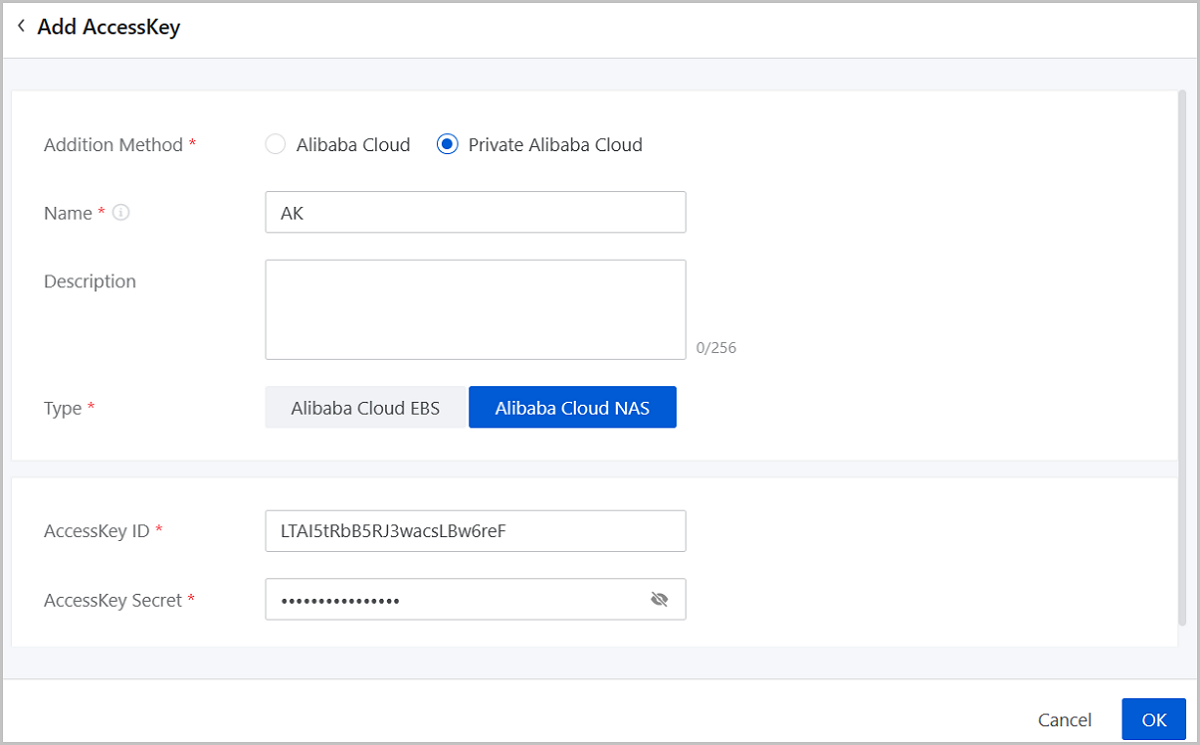
        On the displayed page, set the following parameters:
        • Addition Method: Choose Private Alibaba Cloud.
        • Name: Enter a name for the AccessKey.
        • Description: Optional. Enter a description for the AccessKey.
        • Type: Choose AliyunNAS
        • AccessKeyID: Enter the AccessKey ID of the Private Alibaba Cloud account. Make sure the correctness of the AccessKey ID.
        • AccessKeySecret: Enter the AccessKEy Secret corresponding to the AccessKey ID. Make sure the correctness of the AccessKey Secret.
        Figure 2. Add Private Alibaba Cloud AccessKey


      2. Add a Private Alibaba Cloud region.
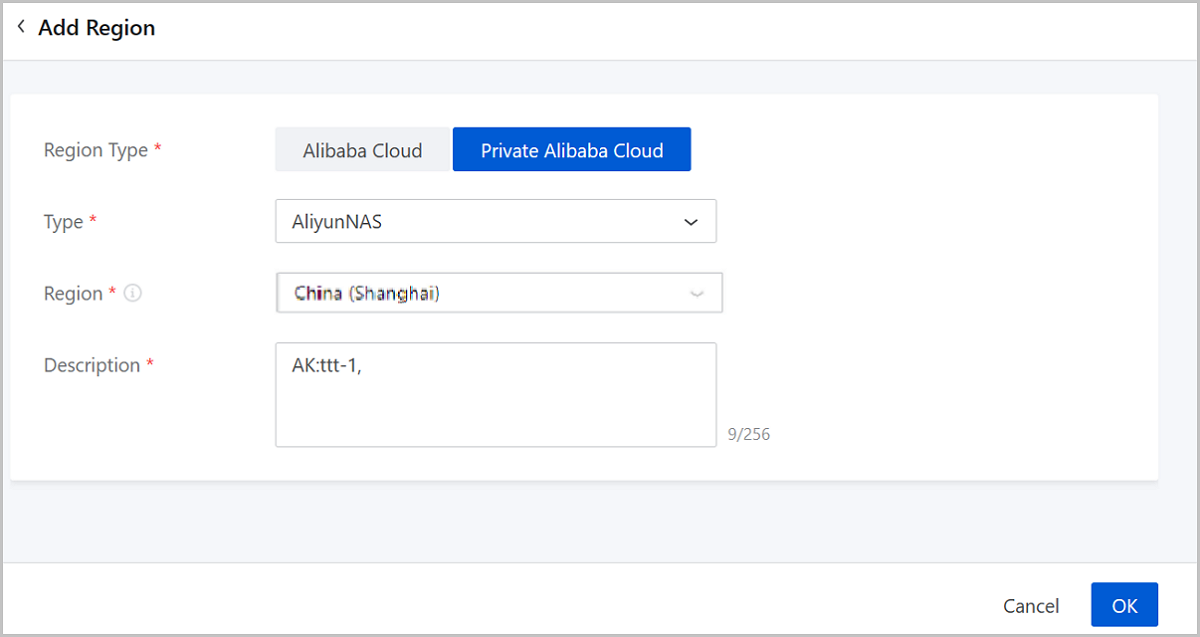
        On the main menu of ZStack Cloud Hybrid Cloud Management, choose Data Center > Region. On the Region page, click Add Region. Then, the Add Region page is displayed. On the displayed page, set the following parameters:
        • Region Type: Select Private Alibaba Cloud.
        • Region: Select a region corresponding to the Private Alibaba Cloud AccessKey.
        • Description: Enter a description for the region. The description is required.
        Figure 3. Add a Private Alibaba Cloud Region (AliyunNAS)


      Note:

      After you add the Private Alibaba Cloud AccessKey and corresponding regions, the NAS file system and related resources are automatically synchronized to local. You do not need to click Sync Data manually.

    3. Create an Alibaba Cloud NAS file system as the backend storage for the AliyunNAS primary storage.

      On the main menu of ZStack Cloud Hybrid Cloud Management, choose Alibaba Cloud NAS > File System. On the File System page, click Create File System. Then, the Create File System page is displayed.

      On the displayed page, set the following parameters:
      • Region: Choose a Private Alibaba Cloud region for the file system.
      • Creation Time: Choose to add an existing file system or create a file system.
        • Existing File System: If you have an NAS file system deployed on Alibaba Cloud, you can directly add it to ZStack Cloud.
          If you choose to add an existing file system, set the following parameters:
          • File System: Add the file system deployed on Alibaba Cloud to ZStack Cloud.
          • Name: Enter a name for the file system.
          • Description: Optional. Enter a description for the file system.
        • Create File System

          You can also create a file system on ZStack Cloud.

          If you choose to create a file system, set the following parameters:
          • Name: Enter a name for the file system.
          • Description: Optional. Enter a description for the file system.
          • Storage Type: Choose a storage type. Valid values: Performance and Capacity.
          • Protocol Type: Choose a protocol type. Valid values: NFS and SMB.
    4. Create a permission group and configure permission group rule allow specified IP addresses to access the file system.
      1. Create a permission group.

        On the main menu of ZStack Cloud Hybrid Cloud Management, choose Alibaba Cloud NAS > Permission Group. On the Permission Group page, click Create Permission Group. Then, the Create Permission Group page is displayed.

        On the displayed page, set the following parameters:
        • Region: Select the Private Alibaba Cloud region where the NAS file system resides.
        • Creation Method: You can choose to add an existing permission group or create a permission group.
          • Existing Permission Group: If you have a permission group on Private Alibaba Cloud, you can add the permission group to ZStack Cloud Hybrid Cloud.
            Note: You can add only a classic network permission group.
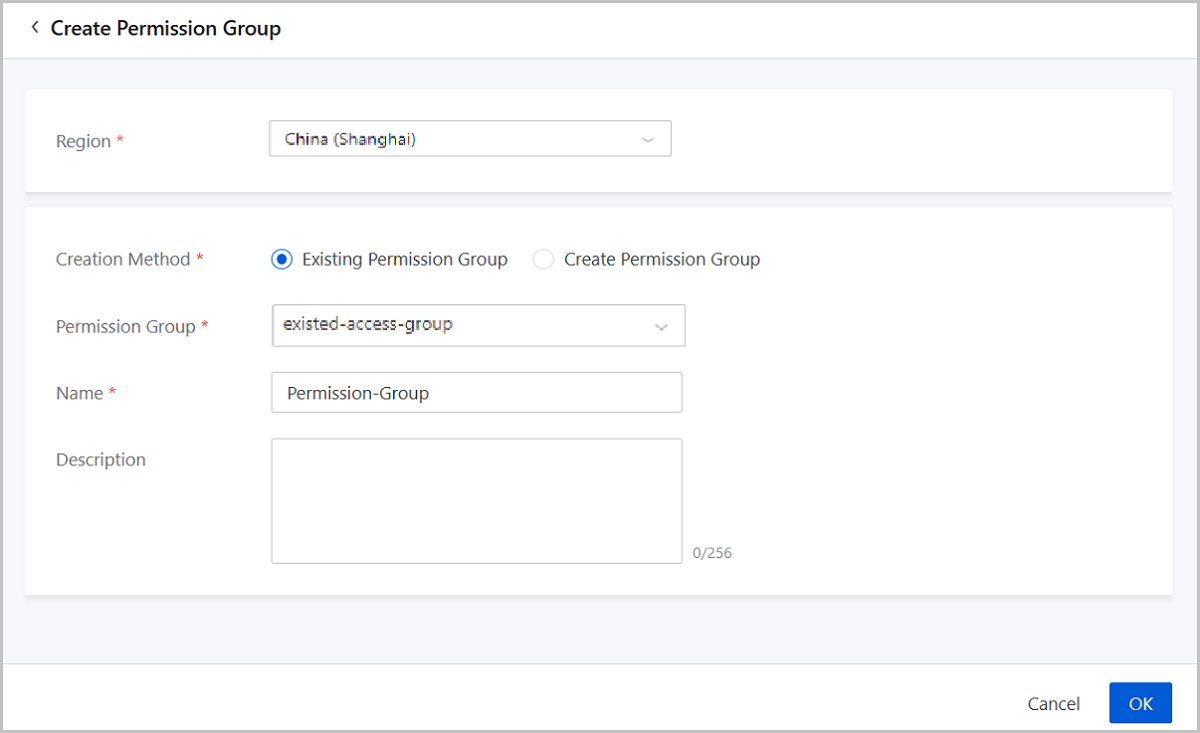
            If you choose to add an existing permission group, set the following parameters:
            • Permission Group: Add the existing permission group to ZStack Cloud Hybrid Cloud.
            • Name: Enter a name for the permission group.
            • Description: Optional. Enter a description for the permission group.
            Figure 4. Add an Existing Permission Group


          • Create Permission Group
            You can also create a permission group on ZStack Cloud Hybrid Cloud.
            Note: You can create only a classic network permission group.
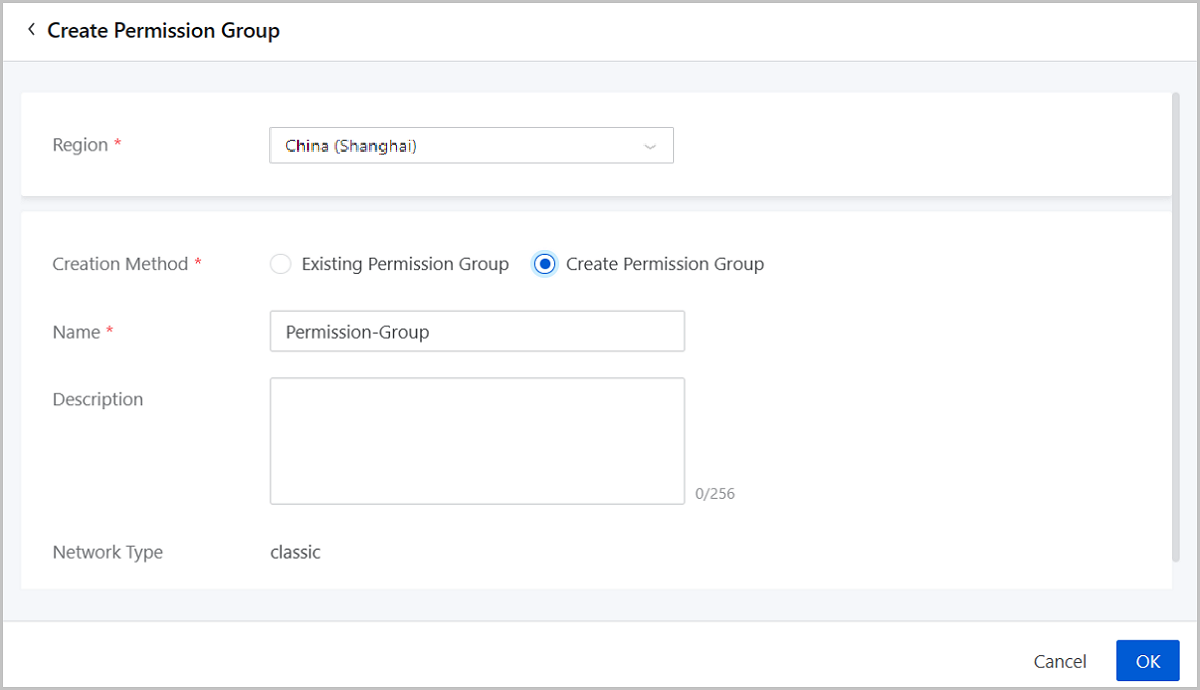
            If you choose to create a permission group, set the following parameters:
            • Name: Enter a name for the permission group.
            • Description: Optional. Enter a description for the permission group.
            • Network Type: Classic (Default).
            Figure 5. Create a Permission Group


      2. Configure permission group rules.
        • If you have a classic network permission group configured with permission rules on Private Alibaba Cloud, you can add the permission group to ZStack Cloud Hybrid Cloud and its permission rules are simultaneously synchronized to local.
        • You can also create permission group rules on ZStack Cloud Hybrid Cloud.

        On the Permission Group page, click the name of a permission group. On the displayed permission group details page, choose Permission Group Rule > Create Permission Group Rule. Then, the Create Permission Group Rule page is displayed.

        On the displayed page, set the following parameters:
        • Network CIDR: Specify an IP address or CIDR as the authorization object of the rule.
        • Priority: Valid values: 1-100. 1 represents the highest priority.
          Note: If you add more than one permission group rules to an authorization object, the rule with the highest priority takes effect.
        • Read/Write Rule: Choose to allow the authorization object to only read the file system (RDONLY) or to read and write in the file system (RDWR).
  2. Add an AliyunNAS primary storage on ZStack CloudPrivate Cloud.
    On the main menu of ZStack Cloud, choose > Resource Center > Hardware > Storage Facility > Primary Storage. On the Primary Storage page, click Add Primary Storage. Then, the Add Primary Storage page is displayed.
    On the displayed page, set the following parameters:
    • Zone: The current zone is displayed.
    • Name: Enter a name for the primary storage.
    • Description: Optional. Enter a description for the primary storage.
    • Type: Choose AliyunNAS.
    • File System: Choose an Alibaba Cloud NAS system file created in Hybrid Cloud Management.
    • Permission Group: Choose a permission group created in Hybrid Cloud Management.
    • Mount Path: The mount path is a host directory used to mount Alibaba Cloud NAS file systems.
      Note:
      • If the entered path does not exist, the system will automatically create one.
      • Do not use the following system directories. Otherwise, an exception may occur to your host:
        • /
        • /dev/
        • /proc/
        • /sys/
        • /usr/bin
        • /bin
    • Cluster: Choose a cluster to attach the primary storage.
  3. Manage the AliyunNAS primary storage.

    On the Primary Storage page, you can manage the added AliyunNAS primary storage, such as enabling, disabling, reconnecting, deleting, entering maintenance the primary storage, or attaching/detaching the primary storage to/from a cluster. On the details page of the primary storage, you can view visualized monitoring, alarm, and audit information of the primary storage, and centrally manage VM instances and volumes created on the primary storage.

What to do next

Now, you have successfully deployed an AliyunNAS primary storage.

Archives

Download Document Archives

Download

Already filled the basic info?Click here.

Enter at least 2 characters.
Cannot be empty.
Invalid mobile number.
Enter at least 4 characters.
Invalid email address.
Wrong code. Try again. Send Code Resend Code (60s)

An email with a verification code will be sent to you. Make sure the address you provided is valid and correct.

同意 不同意

I have read and concur with the Site TermsPrivacy PolicyRules and Conventions on User Management of ZStack Cloud

Download

Not filled the basic info yet? Click here.

Invalid email address or mobile number.
同意 不同意

I have read and concur with the Site TermsPrivacy PolicyRules and Conventions on User Management of ZStack Cloud

Email Us

contact@zstack.io
ZStack Training and Certification
Enter at least 2 characters.
Invalid mobile number.
Enter at least 4 characters.
Invalid email address.
Wrong code. Try again. Send Code Resend Code (60s)

同意 不同意

I have read and concur with the Site TermsPrivacy PolicyRules and Conventions on User Management of ZStack Cloud

Email Us

contact@zstack.io
Request Trial
Enter at least 2 characters.
Invalid mobile number.
Enter at least 4 characters.
Invalid email address.
Wrong code. Try again. Send Code Resend Code (60s)

同意 不同意

I have read and concur with the Site TermsPrivacy PolicyRules and Conventions on User Management of ZStack Cloud

Email Us

contact@zstack.io

The download link is sent to your email address.

If you don't see it, check your spam folder, subscription folder, or AD folder. After receiving the email, click the URL to download the documentation.

The download link is sent to your email address.

If you don't see it, check your spam folder, subscription folder, or AD folder.
Or click on the URL below. (For Internet Explorer, right-click the URL and save it.)

Thank you for using ZStack products and services.

Submit successfully.

We'll connect soon.

Thank you for using ZStack products and services.