Hybrid Cloud Migration Practice

About this task

ZStack Cloud Hybrid Cloud Management allows you to migrate business VM instances on local Private Cloud to Alibaba Cloud Public Cloud.

To migrate a VM instance from local Private Cloud to Alibaba Cloud Public Cloud, follow these steps:
  1. Create a local image based on the local VM instance.
  2. Upload the image to Alibaba Cloud.
  3. Use the image to create an ECS instance on Alibaba Cloud.

The procedures are described in details as follows:
Procedure

  1. Create a local image based on the local VM instance.
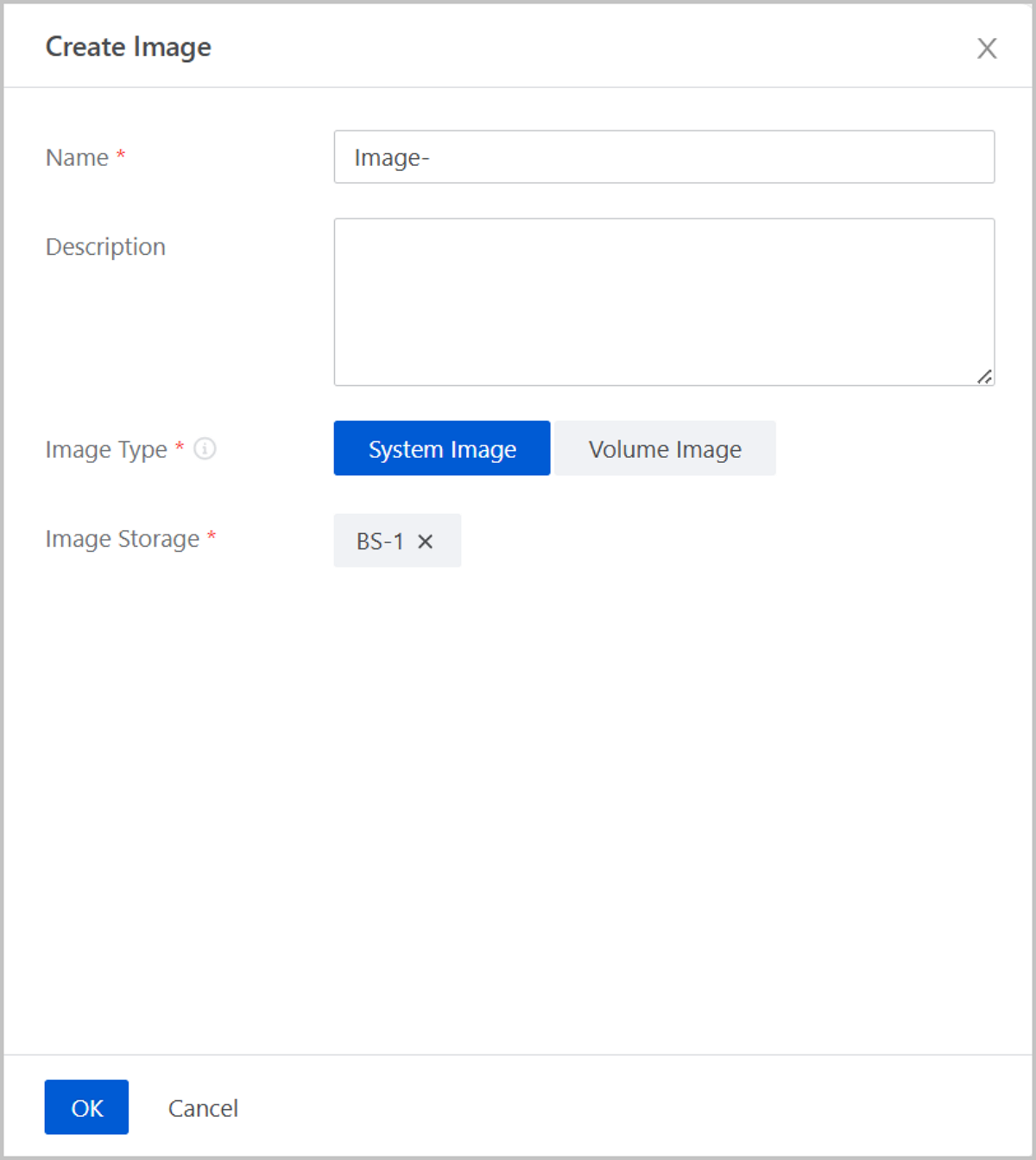
    On the main menu of ZStack CloudPrivate Cloud, choose Resource Center > Resource Pool > VM Instance. On the VM Instance page, locate the VM instance to be migrated. Click Actions > Snapshot and Image > Create Image. On the Create Image page, set the following parameters:
    • Name: Enter a name for the VM image.
    • Description: Optional. Enter a description for the VM image.
    • Image Type: Choose System Image.
    • Image Storage: Choose an image storage to store the image.
    Figure 1. Create Image


    Note: To ensure the application consistent, we recommend that you stop the VM instance before you create the image.
  2. Upload the image to Alibaba Cloud.
    1. Add a Bucket in the corresponding region and set it as the default Bucket.

      On the main menu of ZStack Cloud Hybrid Cloud Management, choose Data Center > Region. On the Region page, click a region to enter its details page. On the region details page, click Bucket > Add Bucket. Then, the Add Bucket dialog box is displayed.
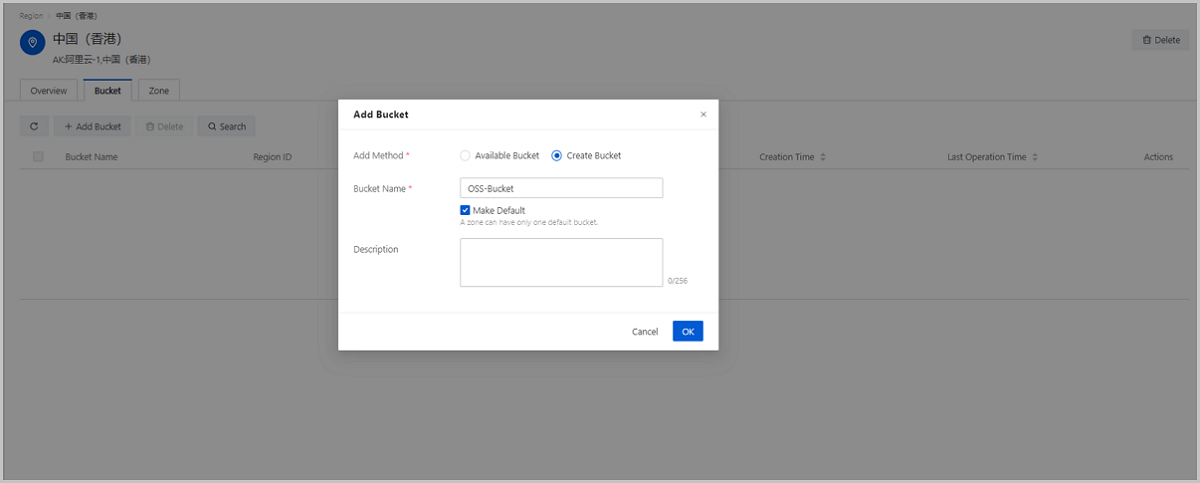
      On the displayed dialog box, set the following parameters:
      • Add Method: Choose Available Bucket or Create Bucket.
        If you choose Available Bucket, set these parameters:
        • Bucket: Select an available Bucket from the drop-down list.
        • Make Default: Set whether to make this Bucket the default Bucket in the region. You need to set one and only one default Bucket for a region. By default, the checkbox is selected.
        • Description: Optional. Enter a description for the Bucket.
        If you choose Create Bucket, set these parameters:
        • Bucket Name: Enter a name for the Bucket. The name cannot be used by other Buckets.
        • Make Default: Set whether to make the bucket the default Bucket in the region. You need to set one and only on default Bucket for a region. By default, the checkbox is selected.
        • Description: Optional. Enter a description for the Bucket.
      Figure 2. Add a Bucket


    2. Upload the local image to Alibaba Cloud
      1. On the main menu of ZStack Cloud Hybrid Cloud Management, choose Products > Image. On the Image page, click Upload Image. Then, the Upload Image is displayed.
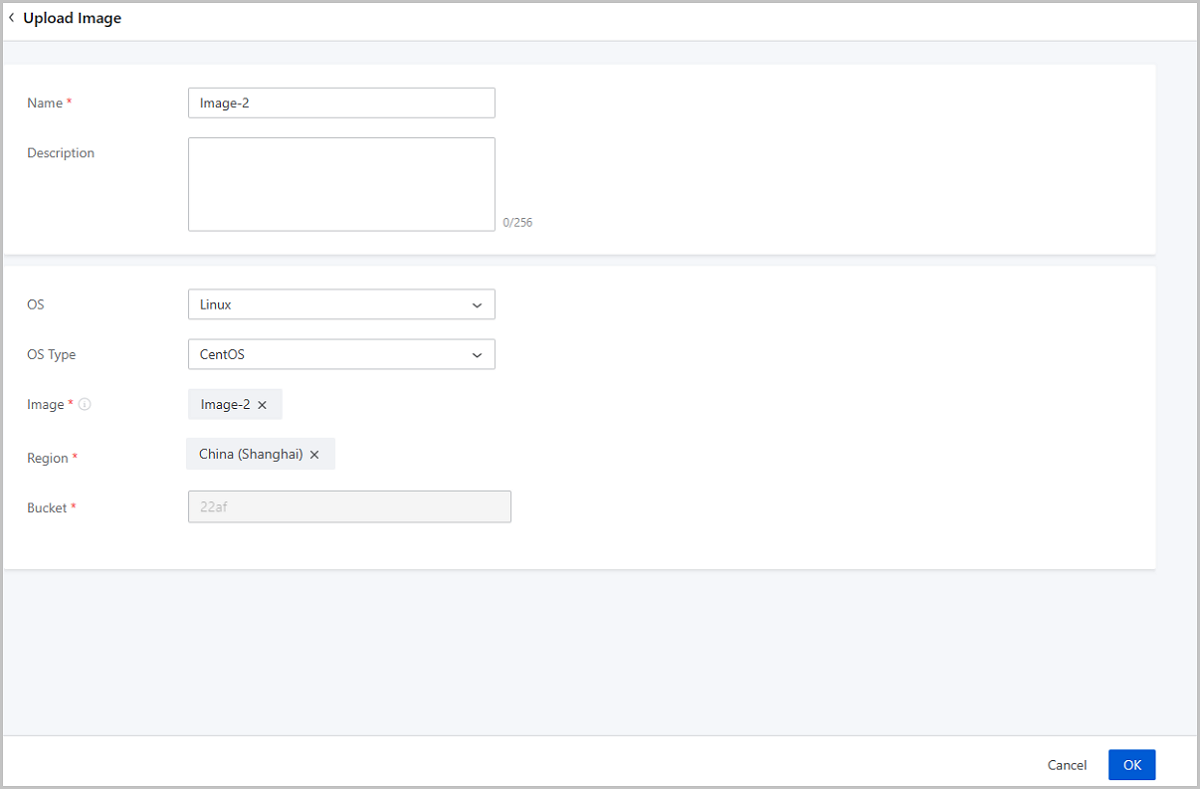
        On the displayed page, set the following parameters:
        • Name: Enter a name for the image.
        • Description: Optional. Enter a description for the image.
        • OS: Select the image operating system.
        • OS Type: Select the image operating system type.
        • Image: Select an image in a local image storage.
        • Region: Select a region that the image is uploaded to.
        • Bucket: The default Bucket in the region is displayed automatically.
        Figure 3. Upload an Image


      2. You can view the image upload process on the Uploading tab page. The whole upload process consists of three steps:
        • (1/3) Export the image from ZStack Cloud.
        • (2/3) Upload the image to Alibaba Cloud OSS.
        • (3/3) Import the image to Alibaba Cloud.
      Note:

      Comply with the requirements of Alibaba Cloud on the custom image import. For more information, see Instruction for importing image.

    3. Log in to the Alibaba Cloud console to check the image uploaded.
      On the Alibaba Cloud console, choose ECS > Image, you can see that the image is uploaded to Alibaba Cloud.
  3. On Alibaba Cloud, use the image to create a business ECS instance. For more information, see Create an ECS instance by using a custom image.

What to do next

Now, you have finished the VM migration from ZStack Cloud Private Cloud to Alibaba Cloud Public Cloud.

Archives

Download Document Archives

Download

Already filled the basic info?Click here.

Enter at least 2 characters.
Cannot be empty.
Invalid mobile number.
Enter at least 4 characters.
Invalid email address.
Wrong code. Try again. Send Code Resend Code (60s)

An email with a verification code will be sent to you. Make sure the address you provided is valid and correct.

同意 不同意

I have read and concur with the Site TermsPrivacy PolicyRules and Conventions on User Management of ZStack Cloud

Download

Not filled the basic info yet? Click here.

Invalid email address or mobile number.
同意 不同意

I have read and concur with the Site TermsPrivacy PolicyRules and Conventions on User Management of ZStack Cloud

Email Us

contact@zstack.io
ZStack Training and Certification
Enter at least 2 characters.
Invalid mobile number.
Enter at least 4 characters.
Invalid email address.
Wrong code. Try again. Send Code Resend Code (60s)

同意 不同意

I have read and concur with the Site TermsPrivacy PolicyRules and Conventions on User Management of ZStack Cloud

Email Us

contact@zstack.io
Request Trial
Enter at least 2 characters.
Invalid mobile number.
Enter at least 4 characters.
Invalid email address.
Wrong code. Try again. Send Code Resend Code (60s)

同意 不同意

I have read and concur with the Site TermsPrivacy PolicyRules and Conventions on User Management of ZStack Cloud

Email Us

contact@zstack.io

The download link is sent to your email address.

If you don't see it, check your spam folder, subscription folder, or AD folder. After receiving the email, click the URL to download the documentation.

The download link is sent to your email address.

If you don't see it, check your spam folder, subscription folder, or AD folder.
Or click on the URL below. (For Internet Explorer, right-click the URL and save it.)

Thank you for using ZStack products and services.

Submit successfully.

We'll connect soon.

Thank you for using ZStack products and services.