Install a License

ZStack Cloud supports two licensing methods: Local Licensing and Server Licensing. The admin can use either of the two methods to install licenses for the Cloud.
  • Local Licensing: Install local licenses using either a request key or an USB key. The Cloud consumes the local license quota.
    • USB Key: Plug the authorization USB Key into the management node to complete the local license installation.
    • Request Key: Use the request key to apply for licenses and upload the obtained license file locally to complete the installation.
  • Server Licensing: Connect to a license server and consume the license quota shared from the license server.
    • License Server: A license server is essentially a cloud platform with the License Sharing feature enabled. Therefore, it can share its license quota with other cloud platforms and acts as a License server.
    • Client Site: A client site refers to a cloud platform that connects to a license server and consumes license quota shared from it.

Local Licensing (USB Key)

This topic details the method for local authorization using a USB key, covering the license installation, license renewal, and USB key status verification.
Install License

To install a license by using a USB key, the admin can follow these steps:
  1. Insert the USB key into the management node.
  2. On the main menu of ZStack Cloud, choose Personal Center > License Management. Then, the License Management page is displayed.
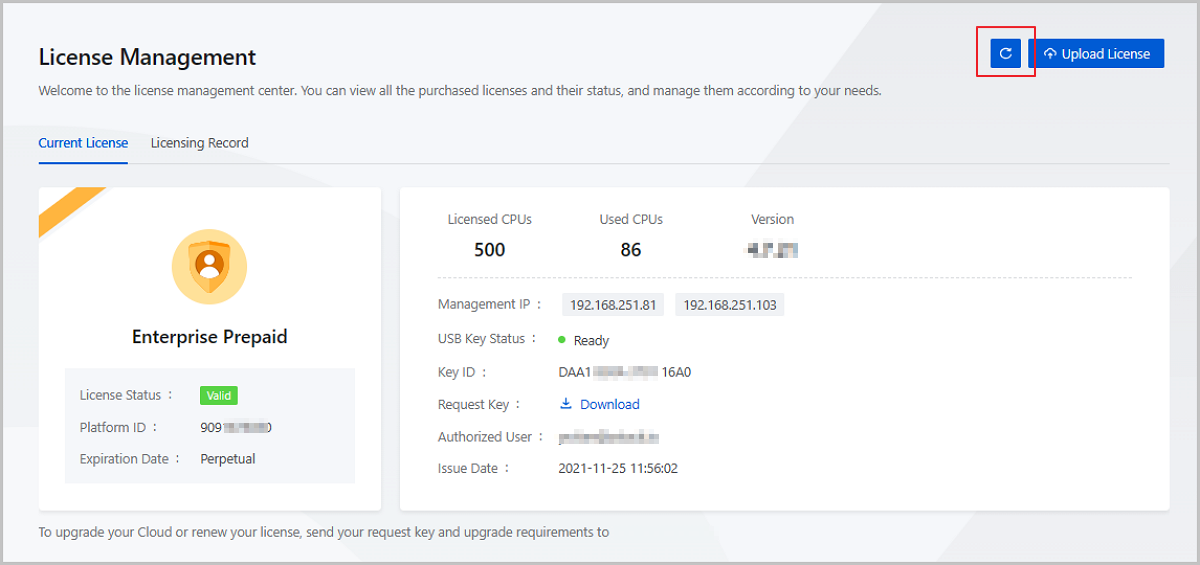
  3. On the License Management page, click the Refresh button to the left of Upload License.
    Figure 1. Refresh License


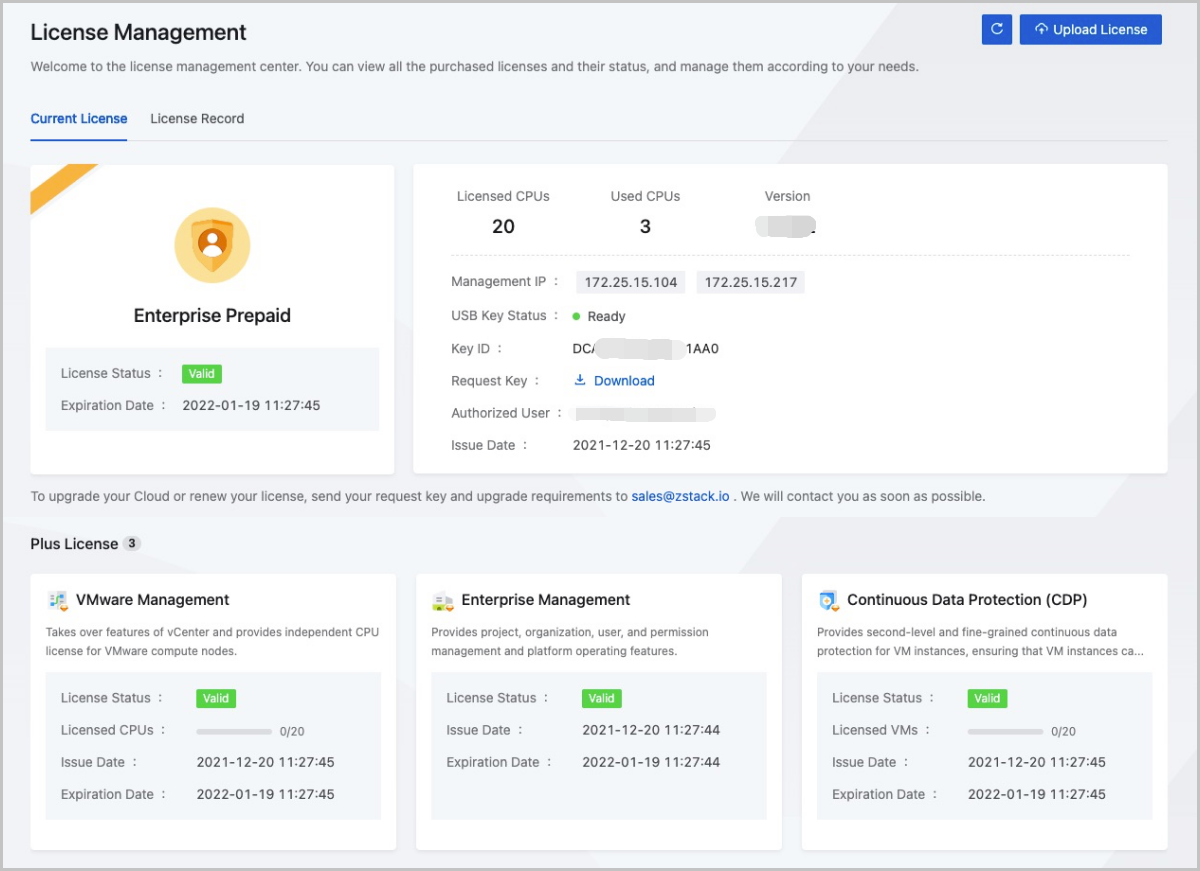
  4. Then, you can see the whole licensing information.
    Figure 2. Whole Licensing Information


Note:
  • If you have got a license by using a request key, you can view Plus License of both the request key and USB key after inserting the USB key. If the Plus License is the same, the latest uploaded one will be taken as a reference.
  • If you get a license by using the USB key, every time you enter the License Management interface of the Cloud, there will be about two seconds of information reading, and the relevant information of the USB key will appear after two seconds.
  • If you are using a dual-MN environment, note that:
    • You can obtain the authorization by inserting only one USB key into the management node.
    • If the node with the USB key inserted is faulty, we recommend that you remove the USB key and insert it into another healthy node to ensure the business continuity.
    • If you update from a single management node environment to a dual-MN environment, you do not need to get the additional license.

Renew License

To resize or add licenses after uploading the license, the admin can follow these steps to renew the license by using a USB key:
  1. Insert the USB key into the management node.
  2. On the main menu of ZStack Cloud, choose Personal Center > License Management. Then, the License Management page is displayed.
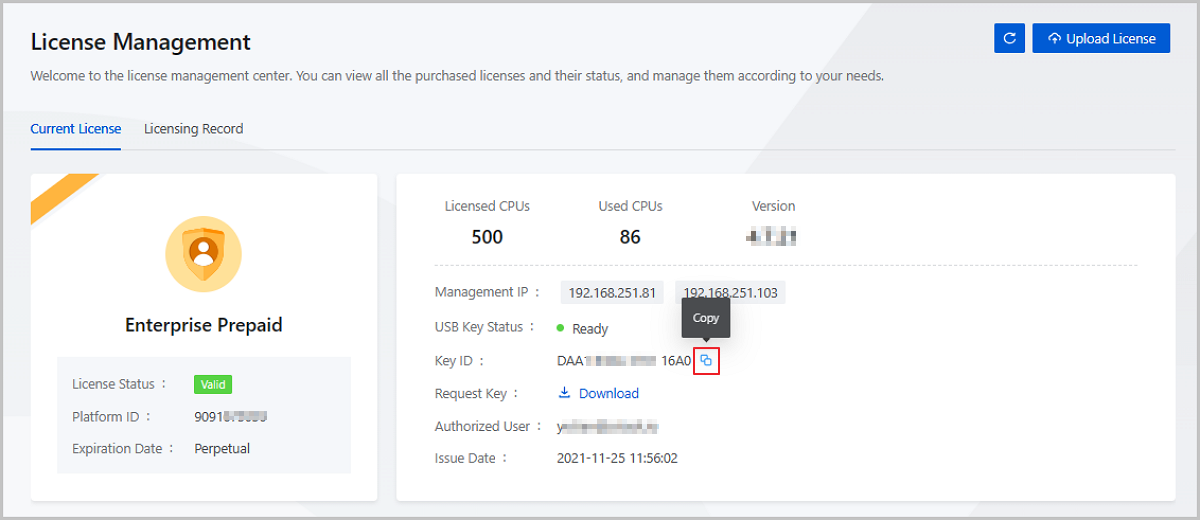
  3. On the License Management page, click the Copy button to the right of the Key ID.
    Figure 3. Copy Key ID


  4. Apply for a license by using the USB Key ID to get the licensing file.
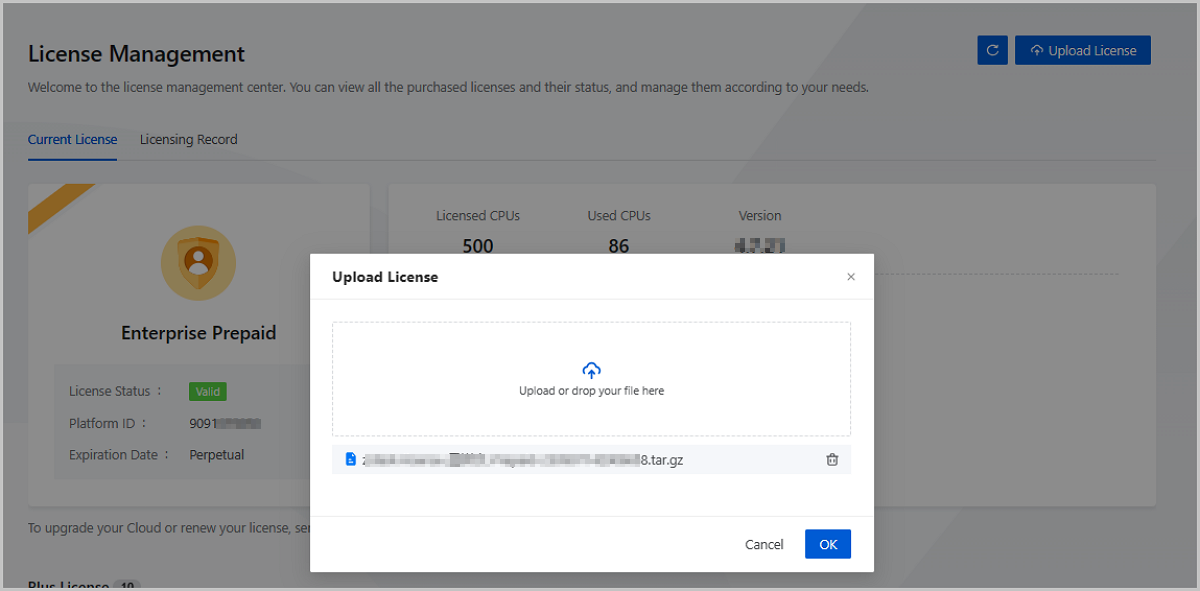
  5. Go back to the License Management page, Click Upload License to upload the licensing file.
    Figure 4. Upload License


  6. Check whether the licensing information is correct.
Note:
  • If you do not insert a USB key into the management node, you can not upload a license by using the USB key.
  • If the USB key ID dose not match the applied license, you can not upload the license by using the USB key.
  • If you apply a new license by using a USB key, you need to fill in previous all applied information and then add new Plus License information when the USB key does not match the request key.

View USB Key Status

On the main menu of ZStack Cloud, choose Personal Center > License Management. Then, the License Management page is displayed. You can view the current status of the USB key of the Cloud.
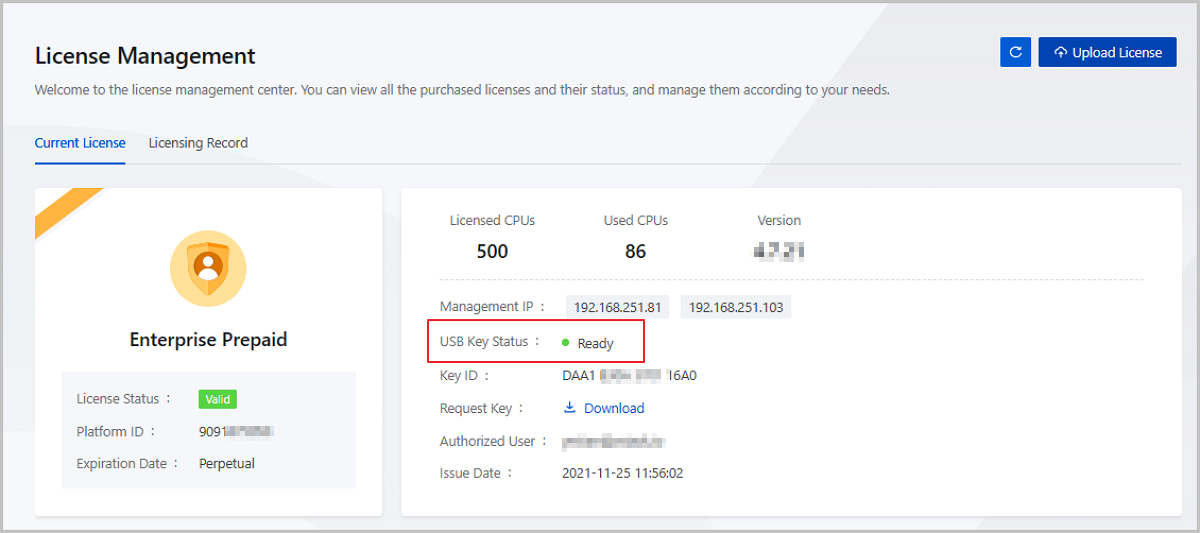
Figure 5. View USB Key Status


USB Key Status

USB key has the following statuses.
Status Description
Ready The USB key is Ready when there is only one USB key inserted into the management node and it works properly.
Missing After unplugging the USB key, the USB key is Missing.
Note: When unplugging the USB key, the Cloud will check whether the current license is expired.
  • If it is expired, there will be no buffer license after unplugging the USB Key. It keeps the status of Expired.
  • If it is not expired,
    • a 30-day buffer license is generated based on the current license of the USB key when you unplug the USB key at the first time.
    • the last time it was unplugged will be detected when you do not unplug the USB key for the first time:
      • If the period between two times is 60 days or more, the buffer license is renewed.
      • If the period is less than 60 days, the expiration time of the previous buffer license is retained.
    • After unplugging the USB key and inserting a new USB key, the licensing information of the new USB key will be displayed and the buffer license of the old USB key will be invalidated.
Abnormal For a dual-MN environment, you might face a possibility of USB key failure if you:
  • Insert one USB key into each of the two management nodes.
  • Insert one USB key into one management node, and insert multiple USB keys into the other management node.
Note: The USB key in an abnormal state does not affect the license.
Fault
  • For a dual-MN environment, you may face a possibility of USB key failure if you:
    • Insert multiple USB keys into one management node, and insert no USB key into the other management node.
    • Insert multiple USB keys into every management node.
  • For a single management node environment, if you insert multiple USB keys into this management node, the USB key status will be Faulty.
Note: When the USB key status is Faulty, you can not use the license after the buffer license is expired.

Local Licensing (Request Key)

This topic details the method for local authorization using a request key covering the license installation and license renewal.
Install License | UI

To install a license by using a request key, the admin can follow these steps:
  1. On the main menu of ZStack Cloud, choose Personal Center > License Management. Then, the License Management page is displayed.
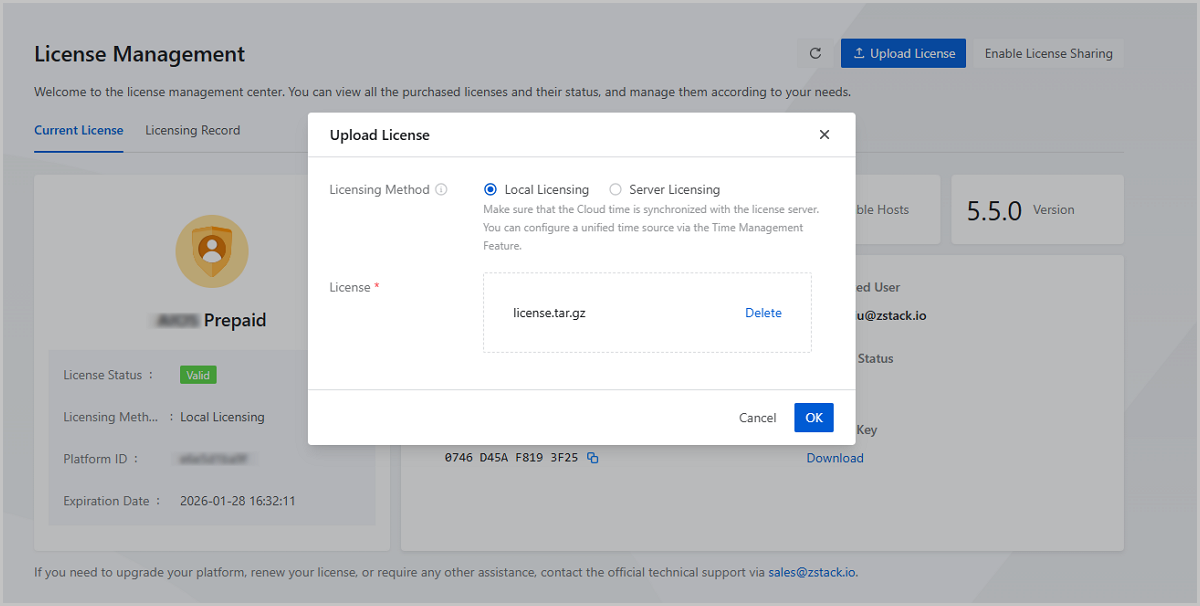
  2. On the License Management page, click Upload License in the upper right corner. On the displayed Upload License window, set the following parameters:
    • Licensing Method: Select Local Licensing.
    • License: Upload the license file.
Figure 1. Upload License


Note:
  • You can upload both the Base license and Plus license at the same time by using a tar.gz package or a .txt file.
  • If you are using a dual-MN environment, we recommend that you download the request key and upload the license file on the management node where the virtual IP address is located. Then, the licensing information on both nodes can be updated.
  • Only the admin has the permission to load or delete licenses. Note that the Base license cannot be deleted.

Install License | Command Line

  1. Import the license by using a command line tool after getting the new license.
    [root@localhost ~]# zstack-ctl install_license -f zstack-license.tar.gz
  2. Refresh the license.
    Reload the license by using the following commands:
    [root@localhost ~]# zstack-cli     ZStack command line tool   Type "help" for more information   Type Tab key for auto-completion   Type "quit" or "exit" or Ctrl-d to exit  >>>LogInByAccount accountName=admin password=password {     "inventory": {         "accountUuid": "36c27e8ff05c4780bf6d2fa65700f22e",         "createDate": "May 25, 2016 8:12:54 PM",         "expiredDate": "May 25, 2016 10:12:54 PM",         "userUuid": "36c27e8ff05c4780bf6d2fa65700f22e",         "uuid": "d505bde1bcce46cb9c79774440654f42"     },     "success": true }  >>>ReloadLicense
Renew License

To resize or add licenses after uploading the license, the admin can follow these steps to renew a license by using a request key:
  1. On the main menu of ZStack Cloud, choose Personal Center > License Management. Then, the License Management page is displayed.
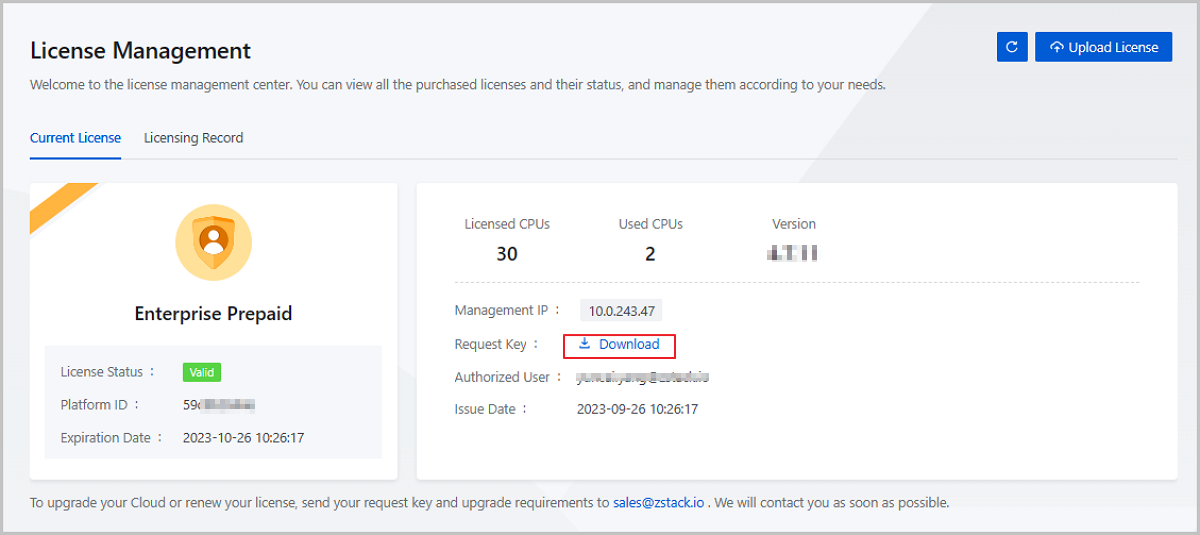
  2. On the License Management page, click the Download button next to Request Key.
    Figure 2. Download Request Key


  3. Apply for a license by using a request key to get the licensing file.
  4. Go back to the License Management page, upload the licensing file.
  5. Check whether the licensing information is correct.

Server Licensing

About this task

This topic details the procedure for server authorization. The admin can follow these steps to complete server authorization:
  1. Configure a license server.
  2. Obtain an AccessKey to access the license server.
  3. Install license for the client site.
  4. Verify the license information.

Procedure

  1. Configure a license server.
    Select a cloud platform to serve as the license server. Log in to this platform as the admin and execute the following steps:
    1. Install a local license for this cloud platform. For details, see Local Licensing (USB Key) and Local Licensing (Request Key).
    2. On the License Management page, click Enable License Sharing in the upper right corner. This allows other cloud platforms to consume the license quota from this server.
      Figure 1. Enable License Sharing


  2. Obtain an AccessKey to access the license server.
    1. Generate AccessKey
      Log in to the license server as the admin. On the main menu, choose Operational Management > Access Control > AccessKey Management. Then, the AccessKey Management page is displayed. On the AccessKey Management page, click Generate AccessKey.
    2. Distribute AccessKeys.
      Distribute the generated AccessKeys to admin users of the cloud platforms (client sites) that need to use the shared license.
  3. Install license for the client site.
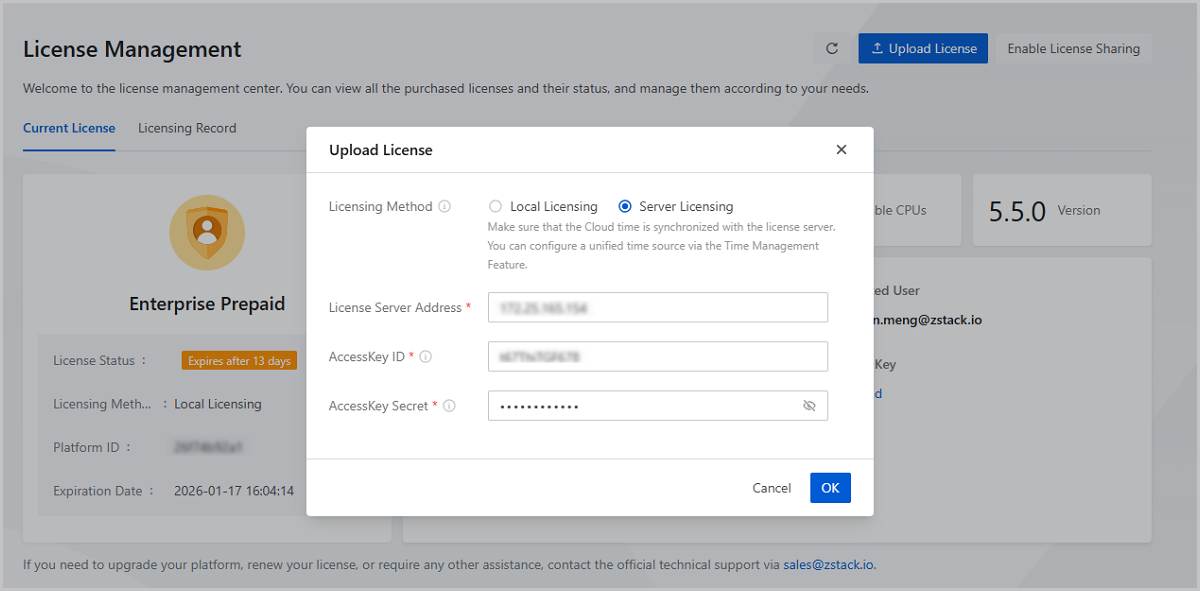
    Log in to the client site as the admin. On the main menu, choose Personal Center > License Management. Then, the License Management page is displayed. On the License Management page, click Upload License in the upper right corner. On the displayed Upload License page, set the following parameters:
    • Licensing Method: Select Server Licensing.
    • License Server Address: Enter the management node IP or domain name of the license server. If the license server has dual management nodes, enter the VIP or corresponding domain name.
    • AccessKey ID: Enter the AccessKey ID obtained in the previous step. The client site uses this AccessKey to access the license server.
    • AccessKey Secret: Enter the corresponding AccessKey Secret.
    Figure 2. Install License


  4. View the license information.
    Check whether the client site has synchronized licenses from the license server.
    Note:
    • After you complete the server licensing, the client site synchronizes all licenses from the license server except the After-Sales Service module license.
    • After you complete the server licensing, the client site does not synchronize the After-Sales Service license from the license server until you update the After-Sales Service license on the license server. During this period, the client site continues to use its local After-Sales Service license (if any).

Archives

Download Document Archives

Download

Already filled the basic info?Click here.

Enter at least 2 characters.
Cannot be empty.
Invalid mobile number.
Enter at least 4 characters.
Invalid email address.
Wrong code. Try again. Send Code Resend Code (60s)

An email with a verification code will be sent to you. Make sure the address you provided is valid and correct.

同意 不同意

I have read and concur with the Site TermsPrivacy PolicyRules and Conventions on User Management of ZStack Cloud

Download

Not filled the basic info yet? Click here.

Invalid email address or mobile number.
同意 不同意

I have read and concur with the Site TermsPrivacy PolicyRules and Conventions on User Management of ZStack Cloud

Email Us

contact@zstack.io
ZStack Training and Certification
Enter at least 2 characters.
Invalid mobile number.
Enter at least 4 characters.
Invalid email address.
Wrong code. Try again. Send Code Resend Code (60s)

同意 不同意

I have read and concur with the Site TermsPrivacy PolicyRules and Conventions on User Management of ZStack Cloud

Email Us

contact@zstack.io
Request Trial
Enter at least 2 characters.
Invalid mobile number.
Enter at least 4 characters.
Invalid email address.
Wrong code. Try again. Send Code Resend Code (60s)

同意 不同意

I have read and concur with the Site TermsPrivacy PolicyRules and Conventions on User Management of ZStack Cloud

Email Us

contact@zstack.io

The download link is sent to your email address.

If you don't see it, check your spam folder, subscription folder, or AD folder. After receiving the email, click the URL to download the documentation.

The download link is sent to your email address.

If you don't see it, check your spam folder, subscription folder, or AD folder.
Or click on the URL below. (For Internet Explorer, right-click the URL and save it.)

Thank you for using ZStack products and services.

Submit successfully.

We'll connect soon.

Thank you for using ZStack products and services.