ZStack Cloud Platform
Single Server, Free Trial for One Year

Comprehensive product documentation and tools

Upholding the value of Customer First and the mission of Serving Customer, ZStack is dedicated to providing secure and stable services for customers.

To educate ZStack partners and interested individuals about cloud computing and to cultivate cloud computing talent.

ZStack provides innovative cloud infrastructure for ten major industries
The report provides three major
solutions and customer case studies for transitioning from VMware to ZStack.
ZStack Cloud allows you to configure and manage SSL certificate. After successfully configuring the SSL certificate, you can log in to the UI via HTTPS protocol. The HTTPS protocol ensures that data transmission is effectively encrypted for the Cloud.
On the main menu of ZStack Cloud, choose . On the Certificate Management page, click Add Certificate. The Add Certificate page appears.
 Note:
Note: ----BEGIN CERTIFICATE---- and ends with ----END CERTIFICATE----.Note: ----BEGIN (RSAIEC) PRIVATE KEY---- and ends with ----END (RSAIEC) PRIVATE KEY----.Note: ----BEGIN CERTIFICATE---- and ends with ----END CERTIFICATE----.Note: When you update the certificate, the system automatically detects the new certificate path and write the certificate information into this path.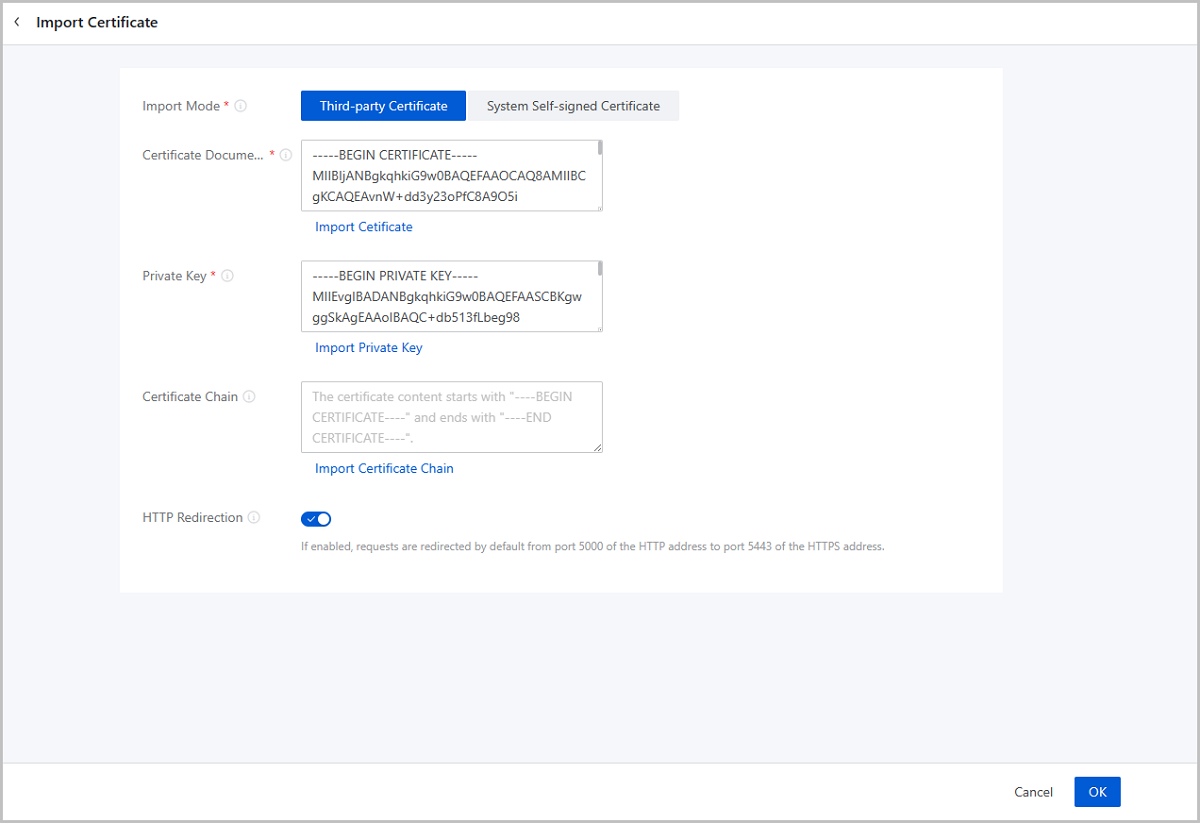 Note: The input must be 1 to 64 characters in length and can contain letters, digits, and special characters. Supported special characters include ~`@#$%^&*()-_+={}[]|:;'<>.?/Note: The input must be 1 to 64 characters in length and can contain Chinese characters, letters, digits, and special characters. Supported special characters include ~`@#$%^&*()-_+={}[]|:;'<>.?/Note: The input must be 1 to 64 characters in length and can contain Chinese characters, letters, digits, and special characters. Supported special characters include ~`@#$%^&*()-_+={}[]|:;'<>.?/Note: The input must be 1 to 128 characters in length and can contain Chinese characters, letters, digits, and special characters. Supported special characters include ~`@#$%^&*()-_+={}[]|:;'<>.?/Note: The input must be 1 to 128 characters in length and can contain Chinese characters, letters, digits, and special characters. Supported special characters include ~`@#$%^&*()-_+={}[]|:;'<>.?/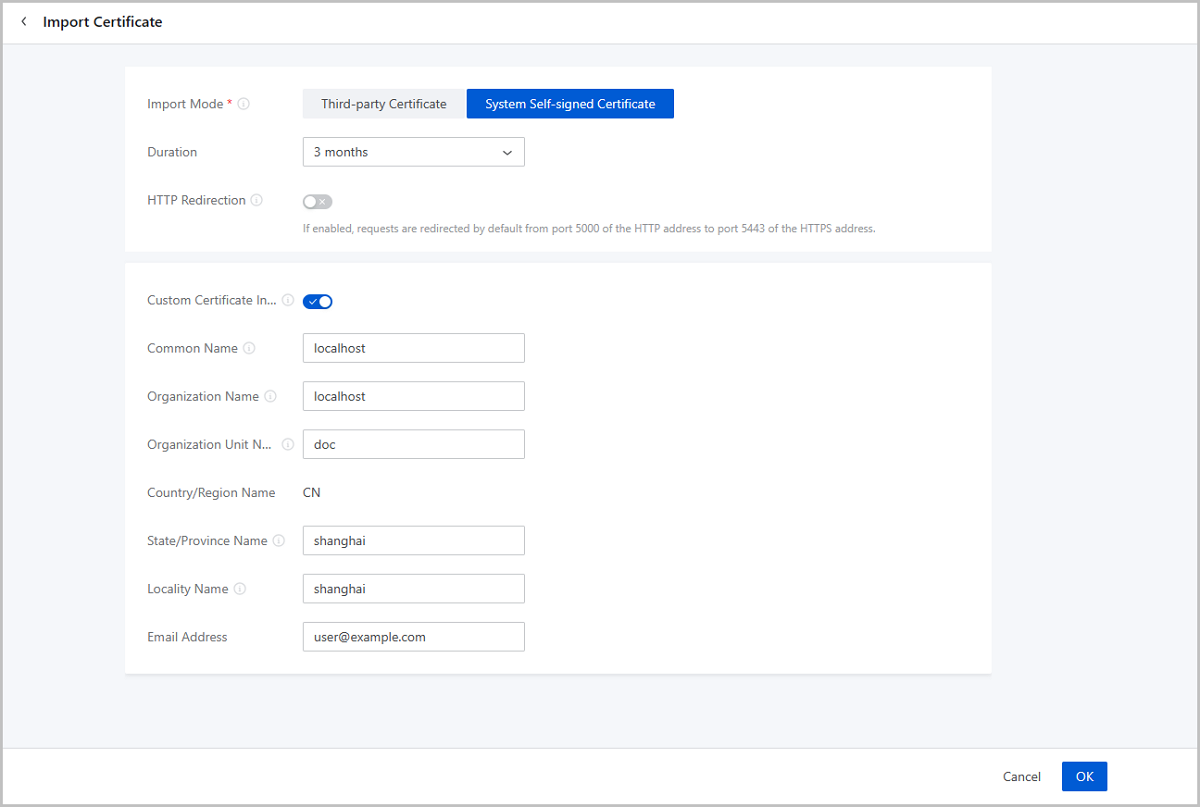
On the main menu of ZStack Cloud, choose . Then, the Certificate Management page is displayed.
| Action | Description |
|---|---|
| Add Certificate | Add a SSL certificate.Note:
|
| Update Certificate | Update the current SSL certificate. |
| Switch back to HTTP | Switch back to HHTP to log in to the Cloud UI.Note: The session is reestablished after you switch to HTTP. You need to log in to the UI again via HTTP protocol. |