Practices


IPsec VPN Practice

About this task

ZStack Cloud allows you to create an IPsec VPN to enable the intercommunication between the VPC networks in the local data center and on Alibaba Cloud.

To create an IPsec tunnel, follow these steps:
  1. In ZStack Cloud Hybrid Cloud Management, create the following resources in order: a region, a zone, a VPC, and a vSwitch associated with the VPC.
  2. Use a VPC network to create a Private Cloud VM instance.
  3. Create an ECS instance.
  4. Create a VPN connection.
  5. Check whether the Private Cloud VM instance can ping the ECS instance. If so, the IPsec tunnel is created successfully.
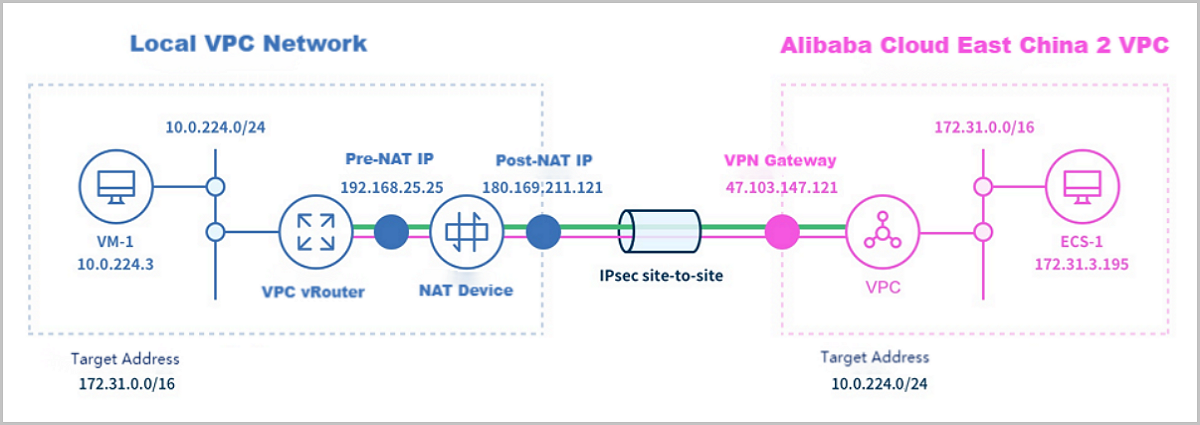
Figure 1. IPsec VPN Network Architecture


Preparations:
  • Initialize ZStack CloudPrivate Cloud, adding basic resources like zones, clusters, hosts, image storage, and primary storage.
  • Purchase a VPN gateway on Alibaba Cloud Console.
Assume that your environment is as follow:
  1. Local Public Network
    Table 1. Local Public Network Configurations
    Public Network Configuration
    NIC eth0
    VLAN ID NoVLAN
    CIDR 192.168.25.0/24
    Gateway 192.168.25.1
    DHCP IP 192.168.25.2
  2. Management Network
    Table 2. Management Network Configurations
    Management Network Configuration
    NIC eth1
    VLAN ID NoVLAN
    IP Address 172.20.58.50~172.20.58.59
    Netmask 255.255.0.0
    Gateway 172.20.0.1
  3. VPC Network
    Table 3. VPC Network Configurations
    VPC Network Configuration
    NIC eth0
    VLAN ID 1982
    IP CIDR 10.10.224.0/24
    DHCP IP 10.10.224.153
  4. Alibaba Cloud VPN customer gateway IP: 180.169.211.121
  5. Alibaba Cloud VPN gateway IP: 47.103.147.121
  6. The CIDR of the vSwitch associated with the VPN gateway: 172.31.0.0/16

The procedures are described in details as follows:

Procedure

  1. In ZStack Cloud Hybrid Cloud Management, create the following resources in order: a region, a zone, a VPC, and a vSwitch associated with the VPC.
  2. In ZStack CloudPrivate Cloud, create a VPC network and use the VPC network to create a VM instance on ZStack CloudPrivate Cloud.
  3. Create an ECS instance.
  4. Create a VPN connection.
    1. Use Quick Start Wizard to create a VPN connection.

      On the main menu of Hybrid Cloud Management, choose Quick Start > Quick Start Wizard. On the Quick Start Wizard page, click Establish VPN Connection.

    2. Select an Alibaba Cloud network.
      On the displayed Select Alibaba Cloud Network page, set the following parameters:
      • VPN Gateway (Alibaba Cloud): Select a purchased Alibaba Cloud VPN gateway.
        Note: If no VPN gateway is available in the selected region, you need to purchase one on Alibaba Cloud Console.
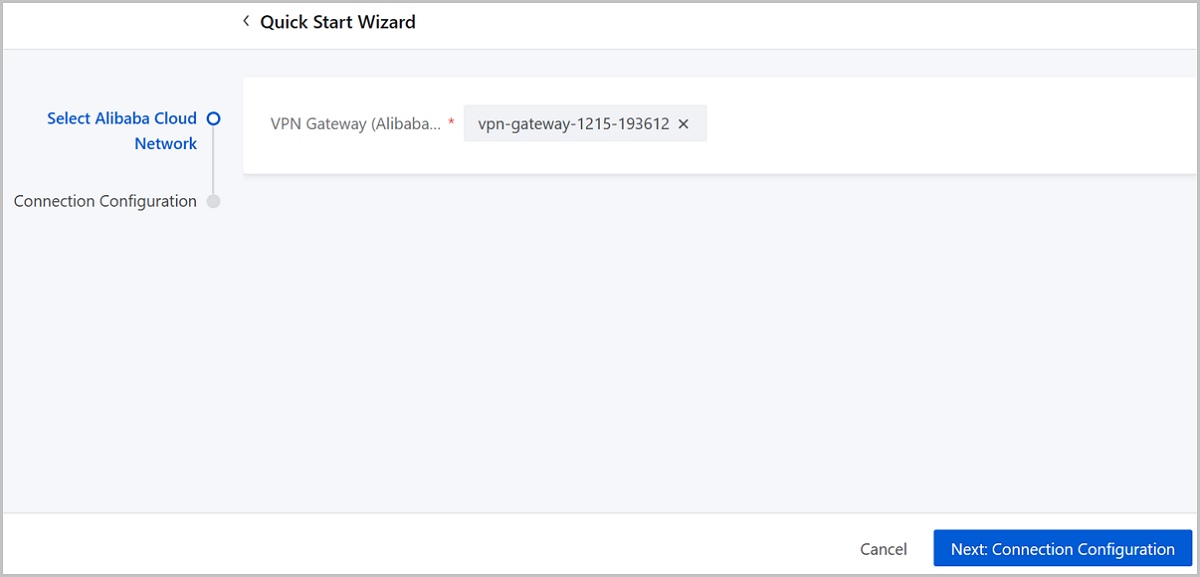
      Figure 2. Select an Alibaba Cloud Network


    3. Finish connection configurations.
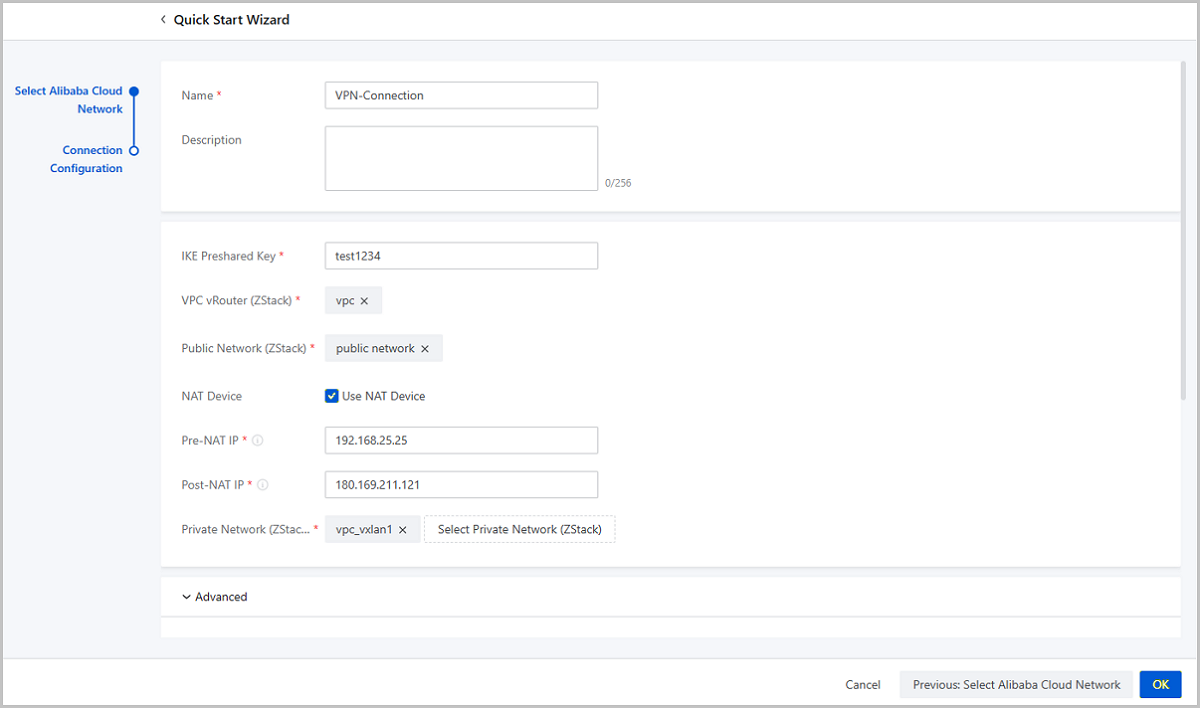
      On the Connection Configuration page, set the following parameters:
      • Name: Enter a name for the VPN connection.
      • Description: Optional. Enter a description for the VPN connection.
      • IKE Preshared Key: We recommend that you set a strong key.
      • VPC vRouter (ZStack): Select a VPC vRouter for the VPN connection.
      • Public Network (ZStack): Select the public network the VPC vRouter attached to.
      • NAT Device: Choose whether an NAT device is used in your local network environment.
        • If an NAT device is used, set the following parameters:
          • Pre-NAT IP: A public network IP to create the IPsec tunnel. Enter an IP address that can be used to access the public network.
          • Post-NAT IP: The IP address of the VPN customer gateway used to create the IPsec tunnel. Enter an IP address that is transformed from the source IP address (Pre-NAT IP) and can access the Internet directly.
          Note: Make sure that the post-NAT IP is the definite transformation result of the pre-NAT IP (source IP address) in you local network environment.
        • If no NAT device is used, set the following parameters:
          • IP Address: Optional. An available public network IP for the IPsec tunnel. Enter an IP address of the public Internet. If you do not set it, the system allocates an available public network IP randomly to create the IPsec tunnel.
      • Private Network (ZStack): Select L3 networks attached to the VPC vRouter. You can select up to 3 L3 networks.
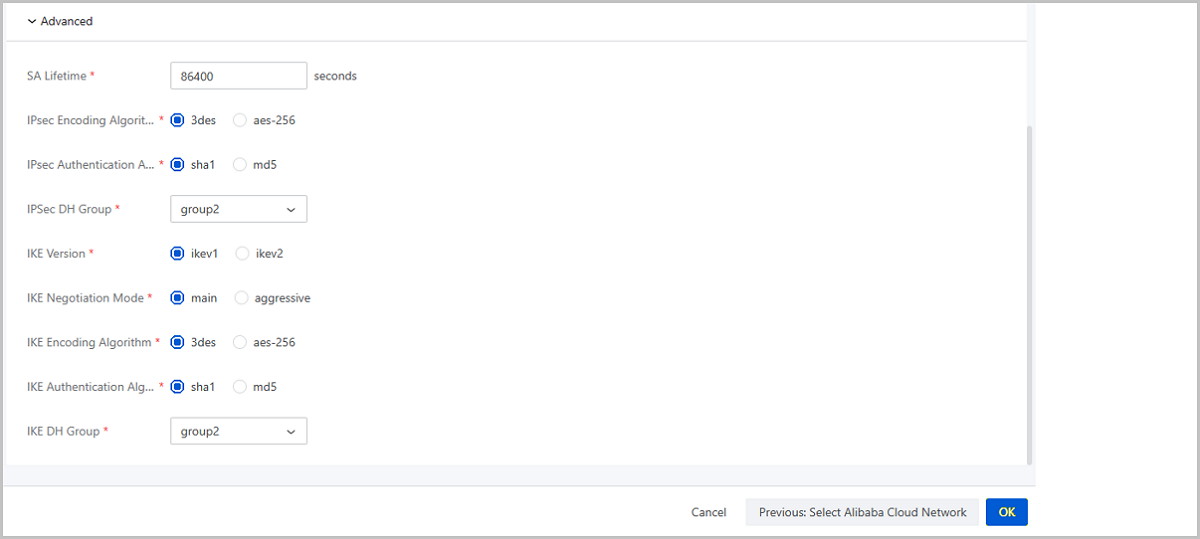
      • Advanced: We recommend that you do not modify the advanced parameters for the default values can ensure the IPsec connectivity.
        • SA Lifetime: 86400 (Default). Unit: second.
        • IPsec Encoding Algorithm: 3des (Default).
        • IPsec Authentication Algorithm:sha1 (Default).
        • IPsec DH Group: group2 (Default).
        • IKE Version: ikev1 (Default).
        • IKE Negotiation Mode: main (Default).
        • IKE Encoding Algorithm: 3des (Default).
        • IKE Authentication Algorithm: sha1 (Default).
        • IKE DH Group: group2 (Default).
      Figure 3. Connection Configuration


    4. Click OK to create the IPsec VPN connection. During the creation, the system automatically finishes the following operations:
      1. Chooses a VIP in the public network corresponding to the local VPC vRouter.
      2. Uses this VIP to create a VPN customer gateway on Alibaba Cloud.
      3. Creates a VPN connection on Alibaba Cloud.
      4. Configures routes for the VPC virtual router on Alibaba Cloud. The destination CIDR is the CIDR of the VPC network the local VPC vRouter attached to. The next hop is the VPN gateway.
      5. Creates an IPsec connection on ZStack CloudPrivate Cloud.
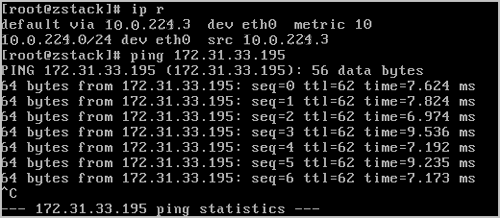
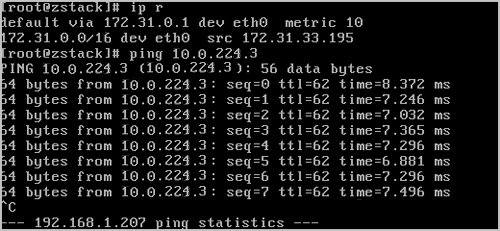
  5. Check whether the local VM instance can ping the Alibaba Cloud ECS instance.

    On the main menu of Hybrid Cloud Management, choose VPN > VPN Connection. On the VPN Connection page, if the status of the VPN connection is Phase 2 negotiations succeeded, the IPsec VPN creation is finished. Then, you need to use the local VM instance to ping the ECS instance to check whether the creation is successful.

    1. Log in to the local VM instance and ping the ECS instance.
      Figure 4. Local VM Instance ping ECS Instance


    2. Log in to the ECS instance and ping the local VM instance.
      Figure 5. ECS Instance ping Local VM Instance


    Note:
    If the VPN connection is not created successfully, or the local VM instance and the ECS instance cannot ping each other, check the following points before you reconfigure the VPN connection:
    • Check whether the local VIP used to create the IPsec connection is occupied. If it is occupied, delete this VIP.
    • Check whether the Alibaba Cloud VPN connection exists. If so, delete the VPN connection both from local and from Alibaba Cloud.
    • Check whether the Alibaba Cloud VPN customer gateway is allocated with a duplicated IP address. If so, delete the IP address both from local and from Alibaba Cloud.
    • Check whether the Alibaba Cloud VPC virtual router is configured with a route rule corresponding to the VPC network of ZStack CloudPrivate Cloud. If so, delete the route rule.

What to do next

Now, you has established an IPsec VPN and enabled the intercommunication between the ZStack CloudPrivate Cloud VM instance and the Alibaba Cloud ECS instance.

Archives

Download Document Archives

Download

Already filled the basic info?Click here.

Enter at least 2 characters.
Cannot be empty.
Invalid mobile number.
Enter at least 4 characters.
Invalid email address.
Wrong code. Try again. Send Code Resend Code (60s)

An email with a verification code will be sent to you. Make sure the address you provided is valid and correct.

同意 不同意

I have read and concur with the Site TermsPrivacy PolicyRules and Conventions on User Management of ZStack Cloud

Download

Not filled the basic info yet? Click here.

Invalid email address or mobile number.
同意 不同意

I have read and concur with the Site TermsPrivacy PolicyRules and Conventions on User Management of ZStack Cloud

Email Us

contact@zstack.io
ZStack Training and Certification
Enter at least 2 characters.
Invalid mobile number.
Enter at least 4 characters.
Invalid email address.
Wrong code. Try again. Send Code Resend Code (60s)

同意 不同意

I have read and concur with the Site TermsPrivacy PolicyRules and Conventions on User Management of ZStack Cloud

Email Us

contact@zstack.io
Request Trial
Enter at least 2 characters.
Invalid mobile number.
Enter at least 4 characters.
Invalid email address.
Wrong code. Try again. Send Code Resend Code (60s)

同意 不同意

I have read and concur with the Site TermsPrivacy PolicyRules and Conventions on User Management of ZStack Cloud

Email Us

contact@zstack.io

The download link is sent to your email address.

If you don't see it, check your spam folder, subscription folder, or AD folder. After receiving the email, click the URL to download the documentation.

The download link is sent to your email address.

If you don't see it, check your spam folder, subscription folder, or AD folder.
Or click on the URL below. (For Internet Explorer, right-click the URL and save it.)

Thank you for using ZStack products and services.

Submit successfully.

We'll connect soon.

Thank you for using ZStack products and services.